
Set up the web library for signals (Ultimate)
Guide for Connect Ultimate customers
Behavior signals are events that are typically important to any business, regardless of the industry. You can configure the Connect library to generate them while visitors are interacting with your website.
Not sure what your license type is?
You can quickly check what type of Connect license your company is using. Log in to your Connect account and see the label on the home screen.
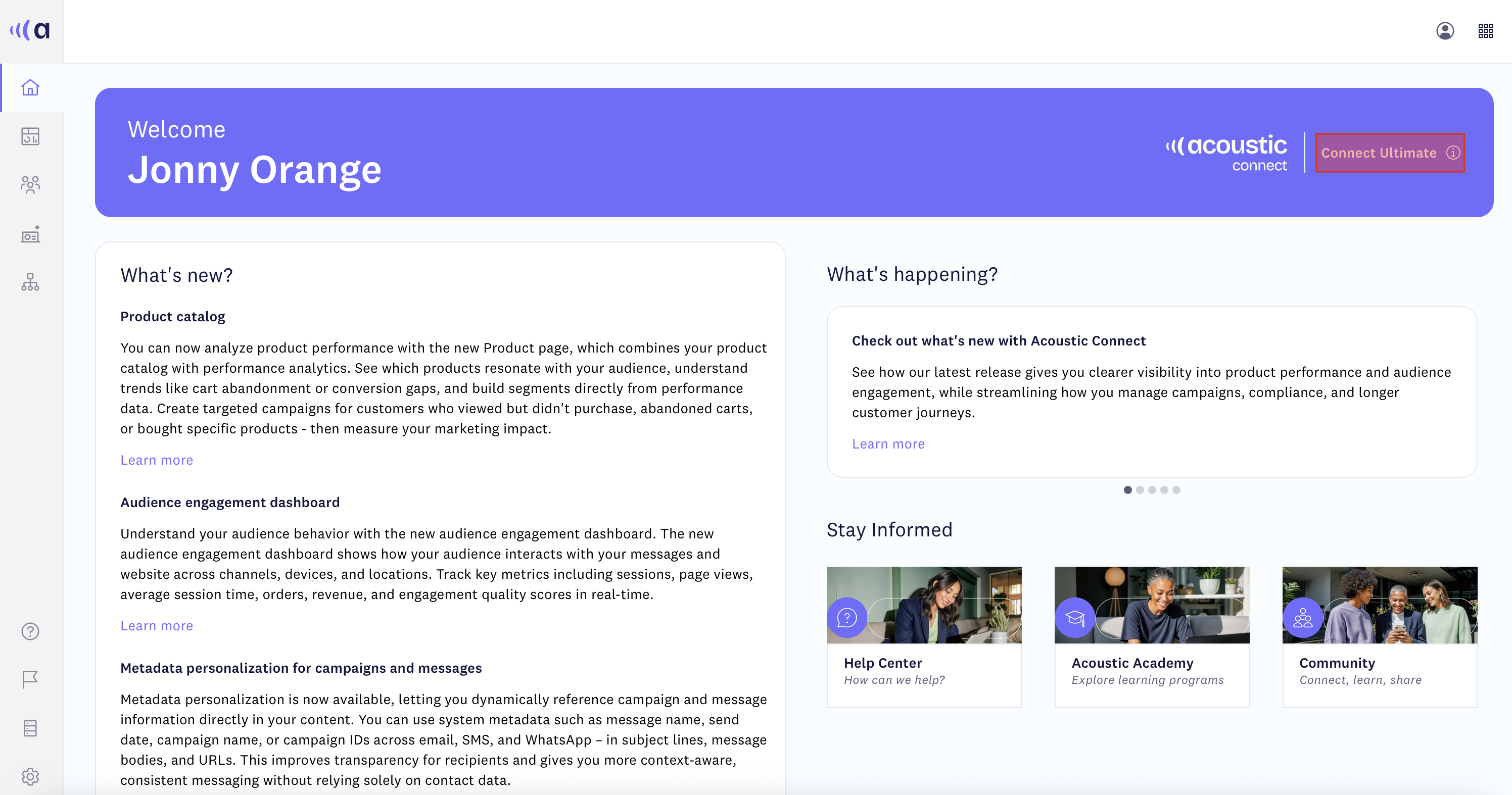
Sample Connect Ultimate subscription
If your subscription is Pro, see Behavioral signals in the Connect web library (Pro). If your subscription is Premium, see Behavioral signals in the Connect web library (Premium). If it's Ultimate, continue reading.
Behavioral signals you send from your website
With a Connect Ultimate subscription, you can send these signals from your website and map them to contacts in your audience. You send each one with a TLT.logSignal() call, as described below.
- Logged in – Captures authentication events as a visitor logs in
- Account registered – Captures new account/registration completions
- Identification (legacy) – Captures visitor emails or contact IDs as they browse your website; superseded by audience‑object mapping for new implementations, but still supported
- On-site search – Captures search queries and results a visitor interacts with
- Error - Captures errors that lead users away from the happy path. Focus on payment, promo code, and account registration errors that result in lost sales opportunities.
- Rich media interaction – Captures engagement with video, audio, or other embedded media
- Product configuration – Captures product option/configuration selections (size, color, and similar variants) before purchase
- Product view – Captures when a visitor views a product detail page
- Remove-from-cart – Captures when a user removes products from their shopping cart
- Add-to-cart – Captures when a user adds products, services or offerings to their shopping cart
- Page view – Captures page navigation events as a visitor moves through your site
Note:pageView is also generated automatically from SDK screen-view activity, independent of the explicit implementation described below — see Page view signals for how it works and how it interacts with your own pageView signals.
- Order – Captures completed orders with total amounts and detailed product breakdowns
- Wishlist item added – Captures when a customer adds a product to a wishlist or saved-items list
- Wishlist item removed – Captures when a customer removes a product from a wishlist or saved-items list
Browse abandonment and Cart abandonment are also available, but are inferred signals with no library call to implement.
Signals Connect records for youConnect also records message signals on its own, such as email opens and mobile push deliveries. You don't send these from your website. To use them in segments, see Segment by customer actions.
Important considerations
The signals are designed to capture all necessary details for each use case. However, some fields may not be available or applicable to your business:
-
No pricing information - If your business doesn't display prices (insurance quotes, B2B requests), use placeholder values for required price fields in signals.
-
Third-party checkout - If users complete checkout on a third-party platform where you cannot install the Connect library, collect order data on your confirmation page or via backend integration. Typical examples include payment processors and ticket-selling platforms.
-
Identification timing - Ensure user identifiers (email, customer ID) are accessible when a signal fires. Consider surfacing identifiers in your data layer once users log in.
Understanding Ultimate configuration
To implement behavior signals, you must first add the Connect library to your web application and initialize it using TLT.initUltimate(), a function added in version 6.4.189. This function automatically applies settings optimized for Ultimate-tier capabilities, which include all behavioral signals plus advanced features like Ajax monitoring and session replay with DOM capture.
Before releasing your web app with the Connect SDK to production, do the following:
- Take measures to secure your end users' personally identifiable information (PII). For instructions, see Enable privacy protection in the Connect Web SDK.
- Work with your Acoustic representative to discuss options for deploying and hosting the SDK and to verify that all necessary data is captured correctly.
Prerequisites
To integrate the Connect library into your app, you need an application key and collector URL. You can generate these credentials yourself in your Connect account. For instructions, see Get an application key for the Connect library.
Instructions
Step A: Install the Connect library
- In your webpage template, add the following code snippets anywhere within the
<head>tag. This ensures they execute as early as possible on page load.
<script src="https://cdn.goacoustic.com/connect/latest/acoconnect.min.js"></script>
<script>
(function () {
    if (window.TLT) {
        TLT.initUltimate({
            appKey: "APP_KEY",        // Replace with your application key
            postUrl: "COLLECTOR_URL", // Replace with your collector URL
            callback: initLogSignal
        });

        function initLogSignal() {
            // Connect library is ready
            // Add your signal implementation code here
            console.log("Connect Ultimate SDK initialized");
        }
    } else {
        console.error("Connect library failed to load");
    }
}());
</script>- Replace
APP_KEYandCOLLECTOR_URLwith your Connect credentials. - Push the changes to the server.
Important notes:
- Script order matters: The Connect library file must load before the initialization code. Do not change the order of the two
<script>tags. - Callback timing: The
initLogSignalcallback function executes only when the Connect library is fully initialized and ready. All signal implementation code must be placed inside this callback to ensure the library is ready before signals are sent. - Error handling: The code checks if
TLTexists before calling to prevent errors if the library fails to load. - Version pinning: You can replace
latestin the CDN URL with a specific version number for production deployments to ensure consistency. Version 6.4.189 or later is required forinitUltimate()support.
Step B: Customize the SDK (optional)
The initUltimate() function accepts additional optional parameters:
TLT.initUltimate({
    appKey: "APP_KEY",
    postUrl: "COLLECTOR_URL",
    addPako: true,                // Enable compression (default: true)
    addAjaxListener: false,       // Track AJAX calls (default: false)
    addRestartTLTforSPA: true,    // SPA support (default: true)
    remoteConfigUrl: undefined,   // Remote config URL (optional)
    callback: initLogSignal
});
For more complex customization needs (such as configuring privacy masking rules or disabling specific modules), you can pass a custom configuration object:
function configureSDK() {
    // Get the default config from the SDK core
    const config = window.TLT.getDefaultConfig();

    // Configure privacy masking
    config.services.message.privacy.push({
        exclude: false,
        targets: [
            "input[type=email]",
            "input[type=tel]",
            "select[form=application]",
            "textarea[form=application]"
        ],
        maskType: 1
    });

    // Configure session replay settings
    config.modules.replay.domCapture.enabled = true;
    config.modules.replay.mousemove.enabled = true;

    // Other customizations
    config.core.buildNote = "Connect SDK with custom config";

    return config;
}

if (window.TLT) {
    TLT.initUltimate({
        appKey: "APP_KEY",
        postUrl: "COLLECTOR_URL",
        newConfig: configureSDK(),    // Custom SDK configuration
        addAjaxListener: true,        // Enable optional Ajax Listener
        callback: initLogSignal
    });
}

function initLogSignal() {
    // Add your signal implementation code here
    console.log("Connect Ultimate SDK initialized with custom config");
}
Step C: Enable behavior signals
Now that the library is installed and initialized, you can configure the behavior signals. All signal implementation code must be placed inside the initLogSignal callback function to ensure the library is ready.
See Behavior signal implementation in the Connect Web SDK for detailed implementation instructions.
Each signal page provides required and optional fields, code examples and implementation guidance.
Example signal implementation:
function initLogSignal() {
    console.log("Connect Ultimate SDK initialized");

    // Example: Track add-to-cart button clicks
    document.querySelectorAll('.add-to-cart-button').forEach(function(button) {
        button.addEventListener('click', function(e) {
            // Extract product data and log signal
            TLT.logSignal({
                signalType: "addToCart",
                name: "Product added to cart",
                category: "Behavior",
                // ... additional signal data
            });
        });
    });
}
Migrating from Acoustic Campaign?You must replace the Silverpop Web Tracking pixel with the new, flexible logSignal-based tracking method in Acoustic Connect.
Step D: Verify signal capture
To confirm that signals are implemented correctly and data is flowing:
- Click around on your website to trigger the signals you have activated. To see signals on a contact, each signal needs a contact identifier in its
audienceobject (or, if you use the legacy method, an identification signal must fire first). - Log in to your Acoustic Connect subscription.
- Go to Audience > Contacts.
- On the All contacts tab, select the contact you used for testing the signal.
- In the activity feed, view the activity associated with the selected contact.
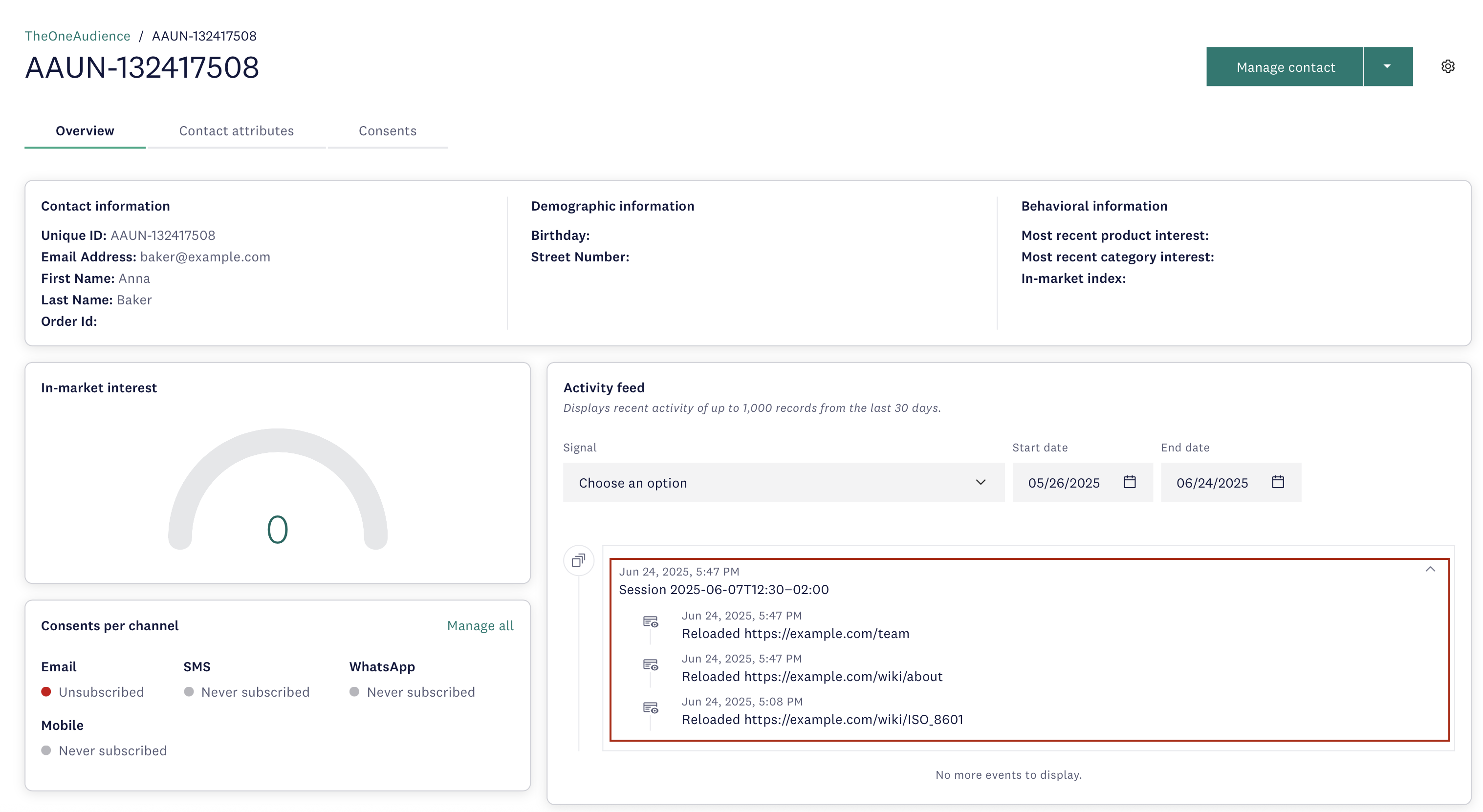
What to look for:
As you expand a user session, you can see the 5 most recent signals of each type associated with it. You should see:
- An event for each signal you implemented, with its details (for example, product details for add-to-cart, order totals for order)
- Session groupings (signals from the same visit are grouped together)
NoteThe activity feed displays the last 1000 signals or signals from the last 30 days. In some cases, newly added signals may not be immediately visible.
Alternative verification methods
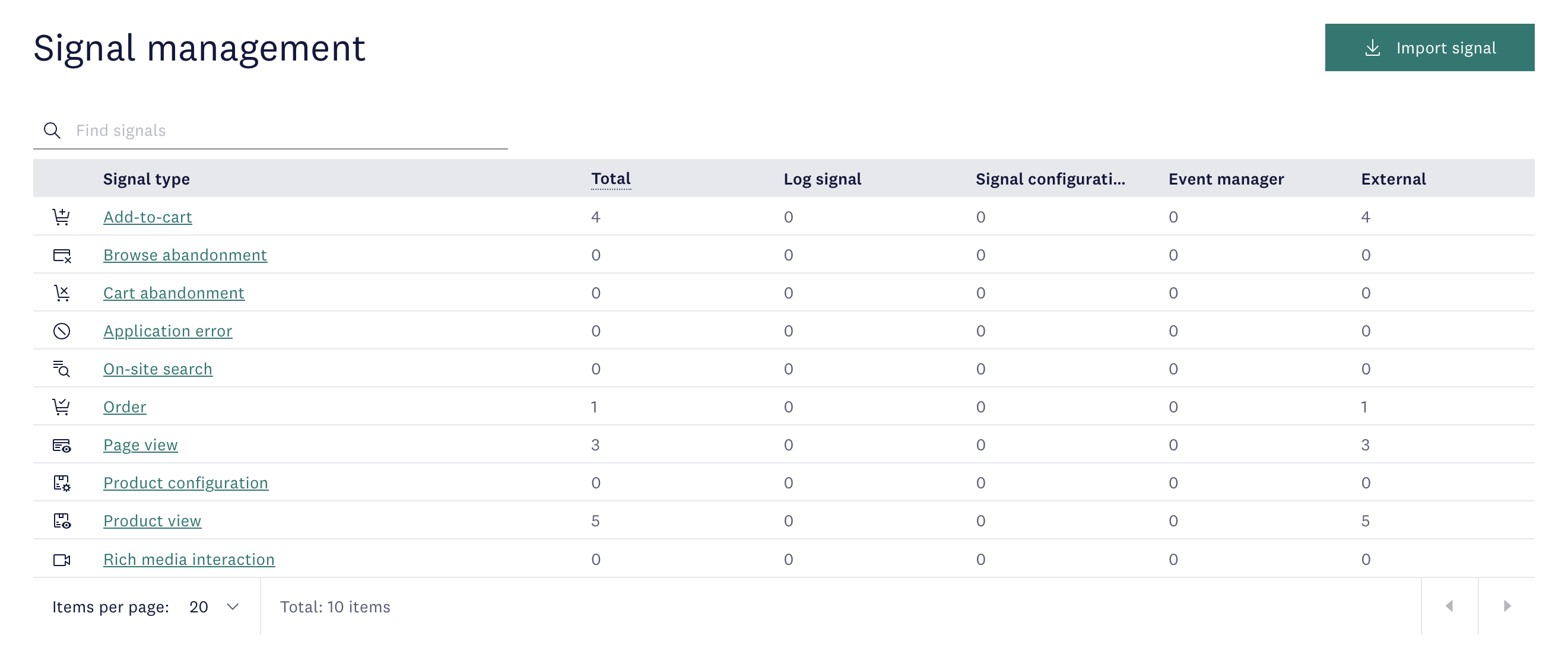
Option 1: Signal management
To view all signals without limitations, navigate to Behavior studio > Signal management and click on a signal type.
Option 2: Session search
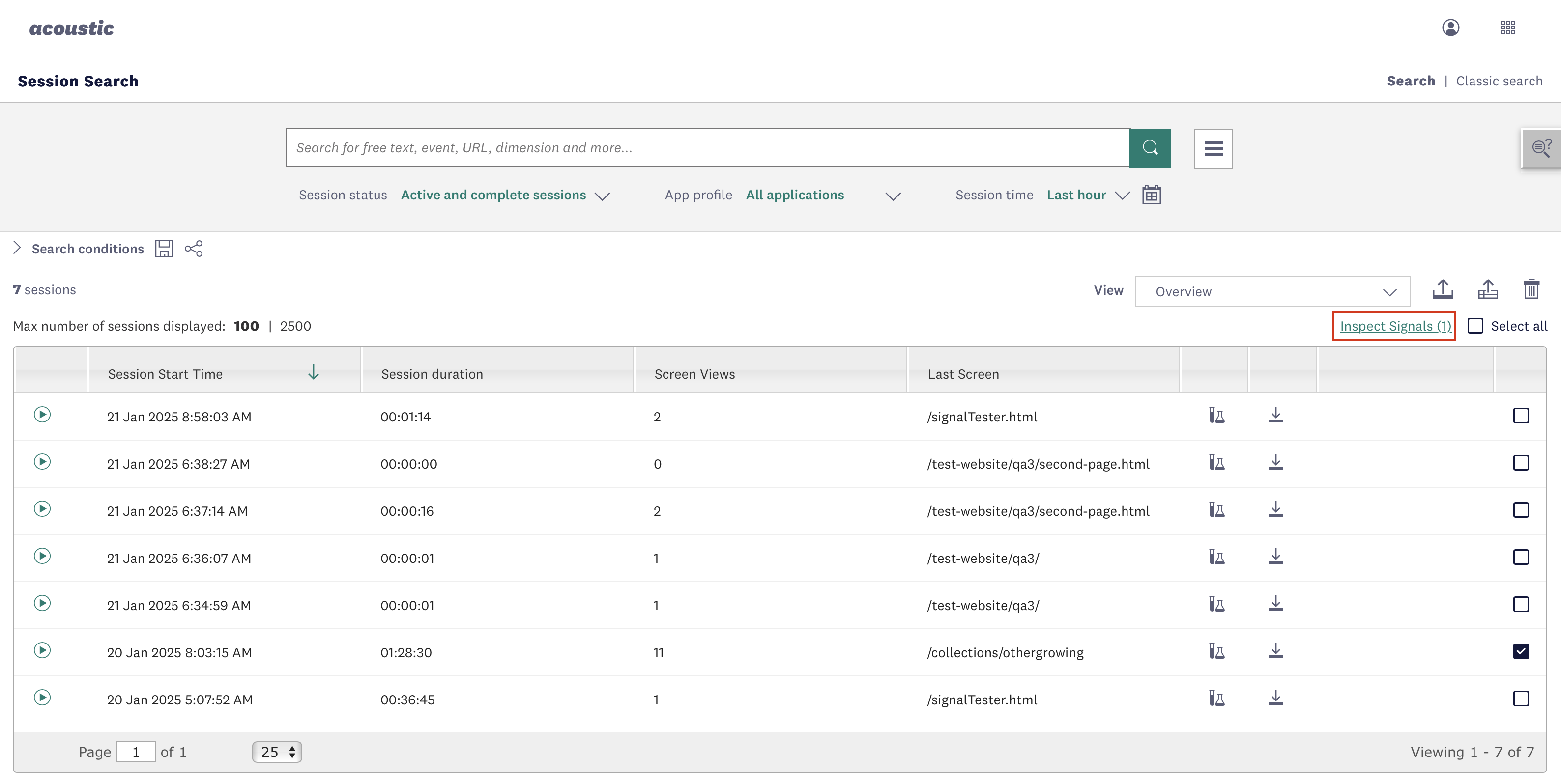
Inspect the JSON payload generated by signals and review session replays.
- Click around on your website to trigger the signals you have activated.
- In your Connect account, navigate to Insights > Sessions > Session search.
- Find your test session and select the checkmark next to it.
- Click Inspect signals.
- Find a JSON object of the following format:
{
  "signalType": "identification",
  "name": "identification from product page",
  "category": "Behavior",
  "identifierName": "email",
  "identifierValue": "[email protected]",
  "identificationFromLogin": true,
  "effect": "positive"
}
Troubleshooting
Signals not appearing in Connect?
- Verify all required fields are populated (see individual signal documentation).
- Check browser console for JavaScript errors.
- Confirm application key and collector URL are correct.
- Check that each signal includes a contact identifier in its
audienceobject (or, with the legacy method, that an identification signal fired before other behavioral signals) - Verify signals are being sent inside the callback function - signals sent before initialization completes will fail silently.
Callback function not executing?
- Verify the Connect library loaded successfully (check browser Network tab).
- Check for JavaScript errors before the
initUltimate()call. - Confirm callback function is defined before being passed to
initUltimate(). - Check the browser console for the "Connect library failed to load" error message.
"initUltimate is not a function" error?
- Verify you're using version 6.4.189 or later of the Connect library.
- Check that the library file loaded successfully (no 404 errors on Network tab).
- Confirm the script URL is correct:
https://cdn.goacoustic.com/connect/latest/acoconnect.min.js.
Signals appearing with missing data?
- Review required vs optional fields for each signal type.
- Check that data extraction logic matches your site's DOM structure.
- Verify timing - some data may not be available when signal fires.
- Use
console.log()to debug extracted values before sending signals.
Library file not loading?
- Check that the CDN URL is accessible from your network.
- Verify there are no content security policy (CSP) restrictions blocking the script.
- Confirm the script tag is in the
<head>section and loads before the initialization code. - Try accessing the CDN URL directly in your browser to confirm it's reachable.
Maintenance note
As your website receives updates or gets redesigned, these changes may affect signal configuration and session replay capture. Include signal verification in your regular quality assurance routine to ensure:
- Selectors still match updated DOM structure
- Data extraction logic captures correct values
- Required fields remain populated
- Signals fire at appropriate times in user flows
- Privacy masking rules still protect sensitive information
- Session replay captures relevant user interactions
Next steps
Now that your signals are capturing data, consider the following steps:
- Create segments based on behavioral data
- Set up automated campaigns triggered by signals
- Monitor signal volume in Signal management
- Review the activity feed regularly to understand customer behavior patterns
- Use session replay to identify user experience issues and optimization opportunities
Related pages
Integrate the Connect SDK into your web application (Ultimate)
Updated 3 days ago