
Collecting images from your iOS application source code folder with the Image Tool
Skill Level:Intermediate
Overview
The iOS Image Capture tool is used with the iOS SDK and only runs in iOS environments. It should be the primary tool you use to capture images in your application. However, if the iOS Image Capture tool is unable to support your image replay experience, you can use the Target Simulator.
iOS Tealeaf Image tool lets you select your application “Source” folder and a “Destination” folder where the image tool saves images that need to be uploaded to Tealeaf server. The iOS Image tool crawls your application code subfolders and looks for image files. When you click on a hashing library (MD5, SHA256, or SHA512), the image tool copies the image files to the destination folder by computing the image file's hash. Next, you zip the folder into a file called images.zip and upload the zip file to the Tealeaf server.
Prerequisites
Before you begin collecting images from your application with the iOS Image Capture tool, download and install the following:
- Clone or download SDK_Tools git repository from SDK_Tools.
- Open the Finder app on your Macbook and go to the
SDK_Tools/SDKPackages/tealeaf/iossubfolder under the repository that you just downloaded. You will see the Tealeaf Image Tool, TLFImageTool.app. The tool is a macOS application.
Step-by-step
1. Open TLFImageTool.app.
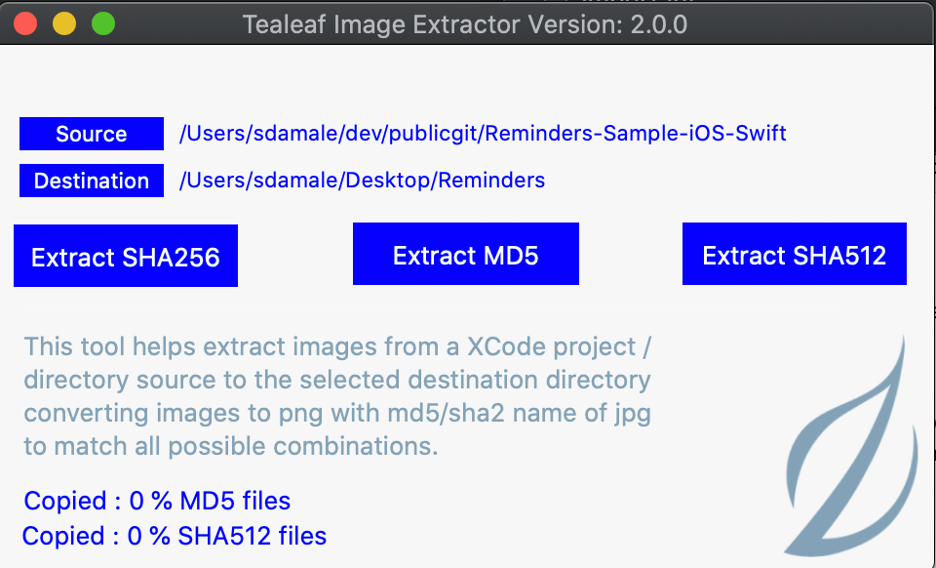
2. Select a source and destination for the image files.
iOS Tealeaf Image tool lets you select your application Source folder and a Destination folder where the image tool saves images that need to be uploaded to Tealeaf server.
3. Copy image files to the destination folder.
Select the type of hash library for the image files that you are copying. When you select a library, the image tool crawls your application code subfolders and looks for the corresponding image files. The image tool then copies the image files to the destination folder by computing each image file's hash.
NOTE:If you select SHA512 or SHA256 and you used the image tool before with MD5, you must generate MD5 images in addition to the SHA512 or SHA256 files. This step is required because some iOS application users will not update your iOS application to the latest version. If you can force your iOS users to update their apps to the latest version, you can skip regenerating the MD5 library when you select SHA512 or SHA256.
MD5 hashing library
If you are using MD5 hashing libraries, click on the “Extract MD5”. All files are copied when the screen displays Copied: 100% MD5files.
SHA256 hashing library
If you are not using either the MD5 or SHA512 hashing libraries, click “Extract SHA256”. Wait for image tool to finish copying SHA256 files to “Destination” folder before copying any other libraries. All files are copied when the screen displays Copied: 100% SHA256 files.
If you used the image tool before with MD5, make sure that you generate MD5 images in addition to SHA256. Click “Extract MD5” and then wait for the screen to display Copied: 100% MD5.
SHA512 hashing library
If you are using SHA512 hashing libraries, click on “Extract SHA512”. Wait for image tool to finish copying SHA512 files to “Destination” folder before copying any other libraries. All files are copied when the screen displays Copied: 100% SHA512 files.
If you used the image tool before with MD5, make sure that you generate MD5 images in addition to SHA512. Click “Extract MD5” and then wait for the screen to display Copied: 100% MD5.
4. Create the images.zip file.
Go to your destination folder and create a zip file called images.zip. The .zip file should contain the contents of the destination folder. Do not create any other folder hierarchies while creating the zip.
To make sure the format is correct, unzip the images.zip file somewhere on your computer and check to see that all images are extracted to a folder named “images”.
Note:The zip file must be named “images.zip”. Tealeaf server requires one imagez.zip file for all your applications across all the Native Mobile platforms. For this reason, if you have multiple applications on multiple Native Mobile Platforms, such as iOS, iPadOS, Android, run the respective image tool for each of the applications on the iOS and on Android platforms. After you copy all images from all applications, create one images.zip folder with the flat folder hierarchy.
5. Upload images to the Tealeaf server.
Copying files to Tealeaf SaaS server
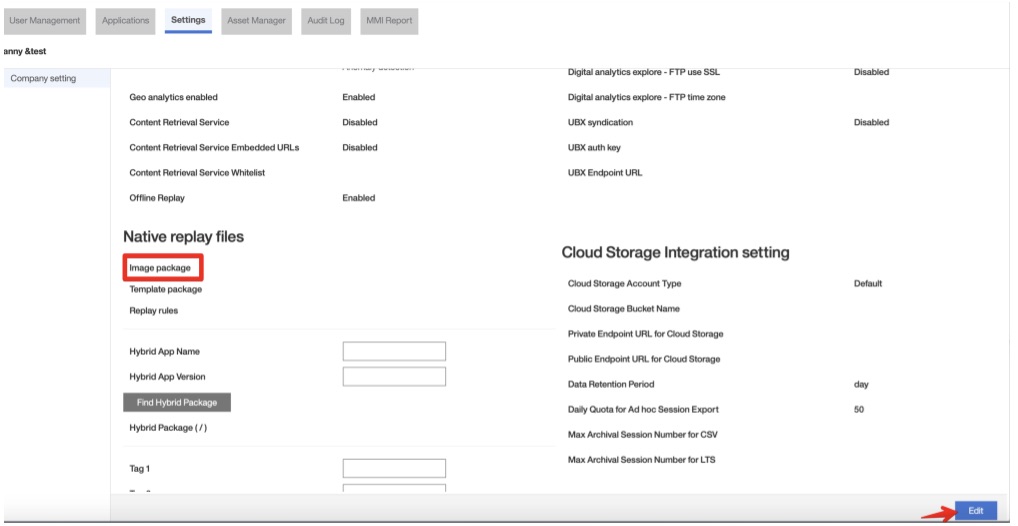
If you are using Tealeaf SaaS, follow these instructions to copy files to the Tealeaf SaaS server:
Upload the images.zip file to “image package” under Company settings.
Copying files to Tealeaf OnPrem server
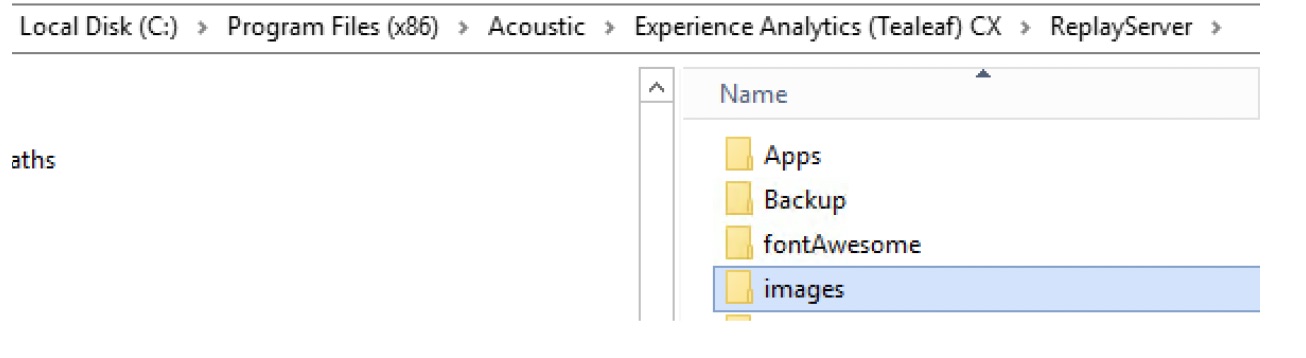
If you are using Tealeaf OnPrem, follow these instructions to copy files to the Tealeaf OnPrem server:
-
Put all image files under the folder named “images”, and then add the images.zip file under Replay Server.
-
Next, restart Replay Server services.
Expected outcome
Your iOS image files are copied to the Tealeaf server.
Updated 6 months ago