
Collecting images from your application with the Target Simulator for Android
Skill Level: Any
Prerequisites
Note:The Target Simulator is not expected to be used in most scenarios. It should only be used when the Android Image Capture Tool is unable to support your image replay experience. The tool supports MD5, SHA256 or SHA512 formats. For example, to capture all MD5s.
The Target Simulator acts as a target page on your local machine. After you start the simulator, you exercise every page in your application. The simulator takes the images that are embedded in the application, uses the image check sum to create a unique file name for each image, and saves the images in the same location as the Target Simulator tool. After you have the images, they must be transferred to the replay server images folder.
Before you begin using the Target Simulator, download and install the node.js SDK on your local machine. You can obtain an installer from the Android SDK package or http://www.ibm.com/developerworks/web/nodesdk/. Only the Acoustic SDK for Node.js is supported.
Step-by-step
1. Extract the Target Simulator archive on the device that you used to create your application.
2. Open a terminal or command line prompt.
Change your directory to the folder where the Android Image Capture tool is located:
cd <path to Target Simulator>
3. Run the Tealeaf Target Simulator with the node.js
Use the command: node target_sim.js MD5
Your terminal should look like this:
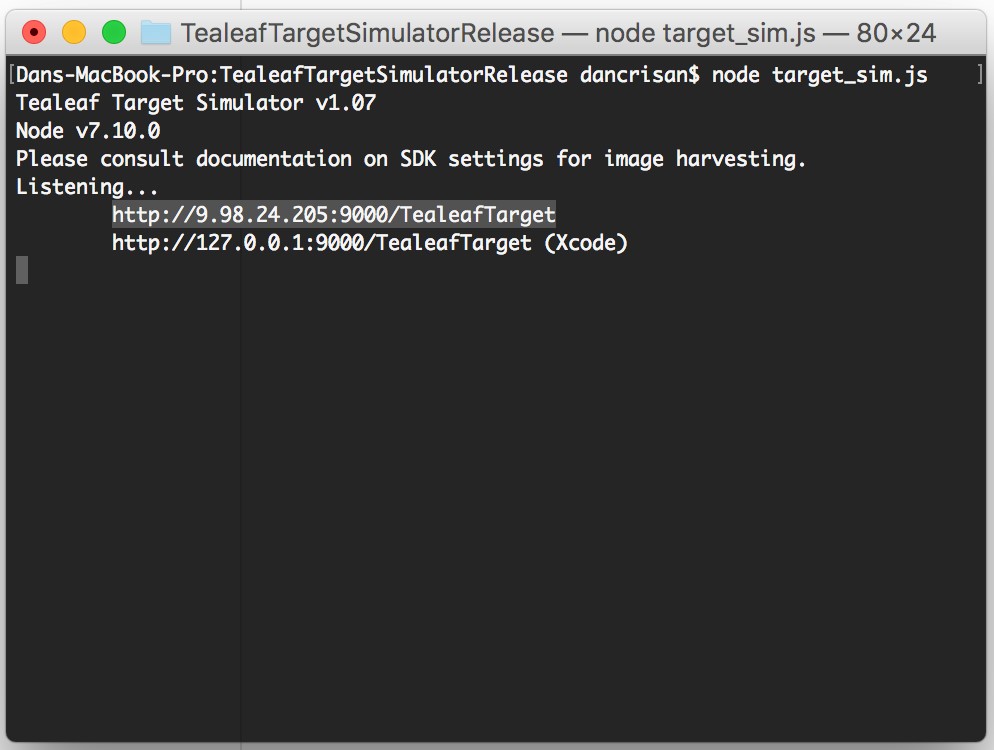
4. Open Android Studio
-
Select Open an existing Android Studio project.
-
Select your application's project.
-
Press OK.
5. Open your TealeafBasicConfig.properties file.
- Replace the
PostMessageUrlvalue with one of the target URLs (from the terminal), as shown below:
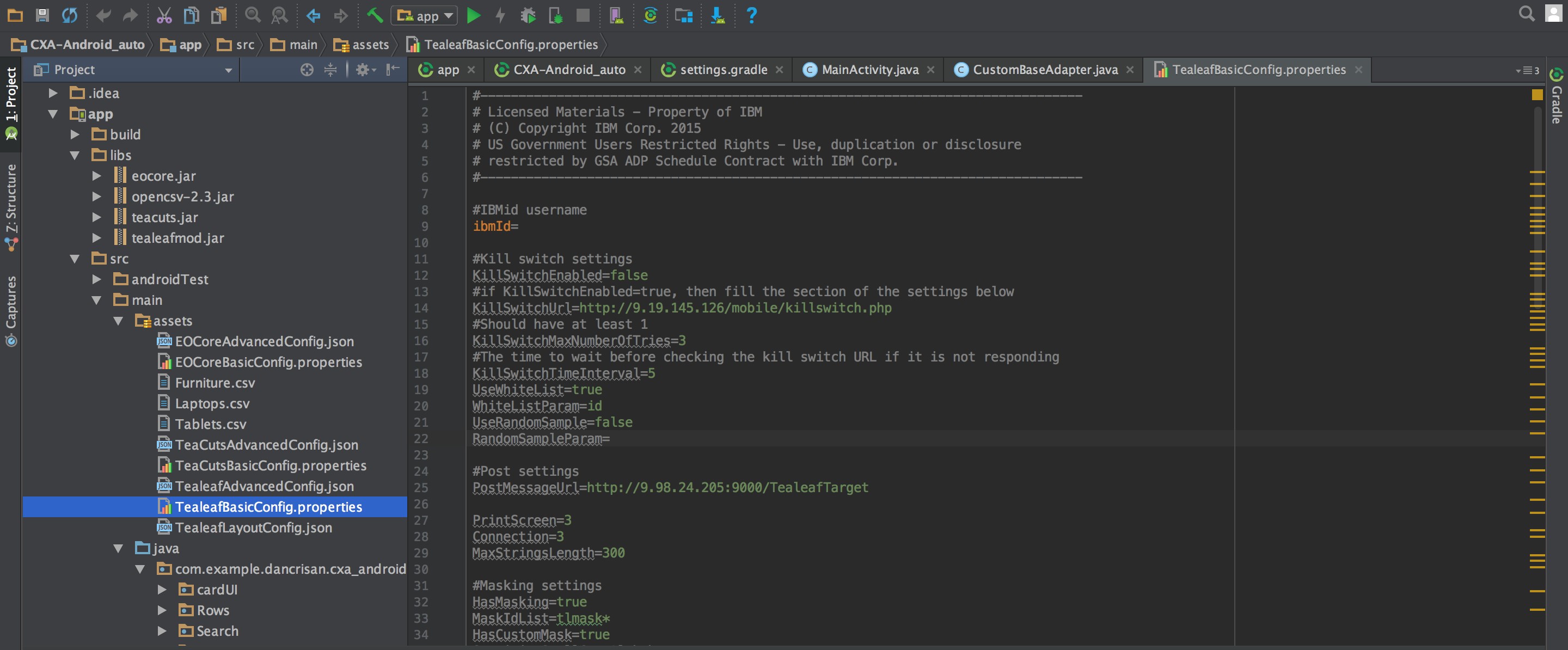
- Check that
GetImageDataOnScreenLayout=true.
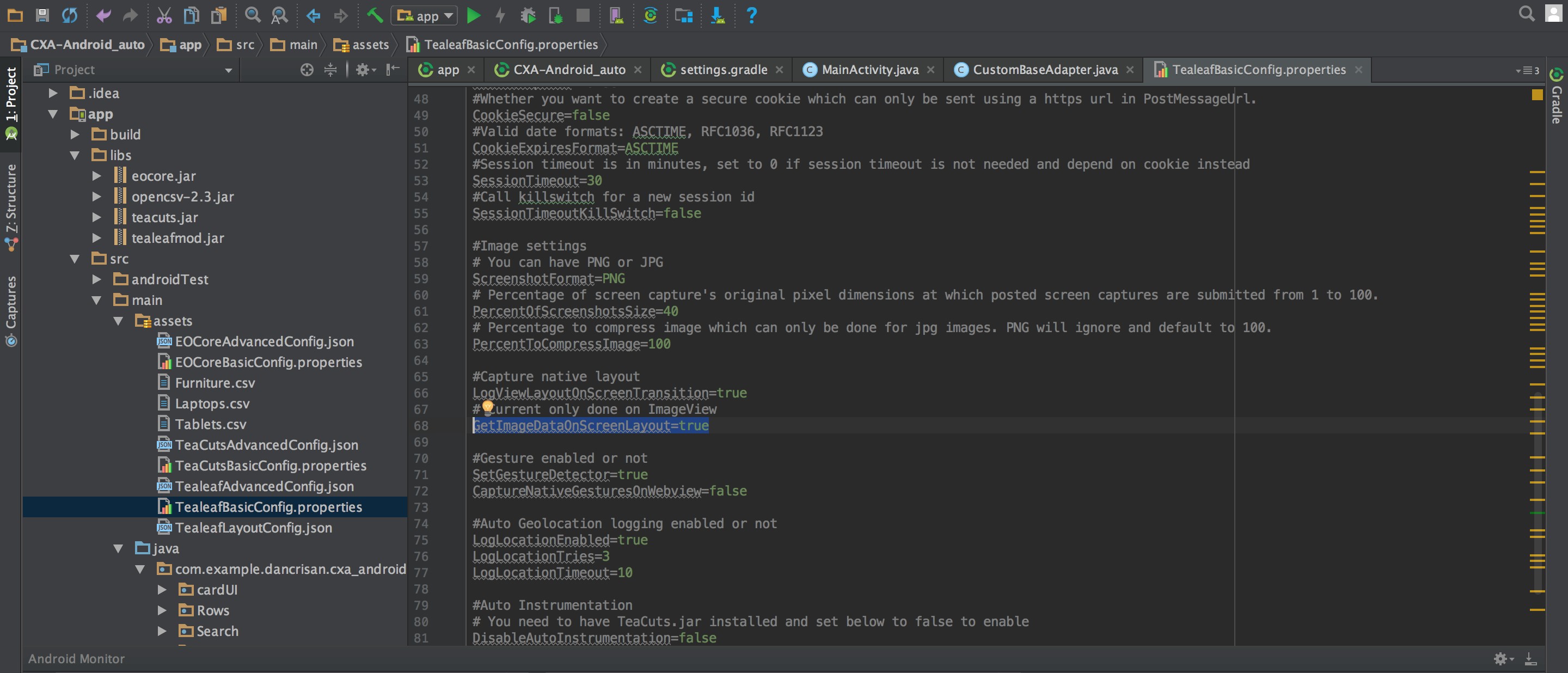
The Android SDK has built in SHA256 image hashing support. If you need to use other algorithms, import the appropriate aar file into your project by going to this link: Android_Maven
- MD5 hashing
tealeafmd5-x.x.x.aar - SHA512 hashing
tealeafsha-x.x.x.aar
6. Run your application from Android Studio.
7. Navigate between your application's activities.
Every .png image of your applications is extracted. On the terminal, you should see the following:
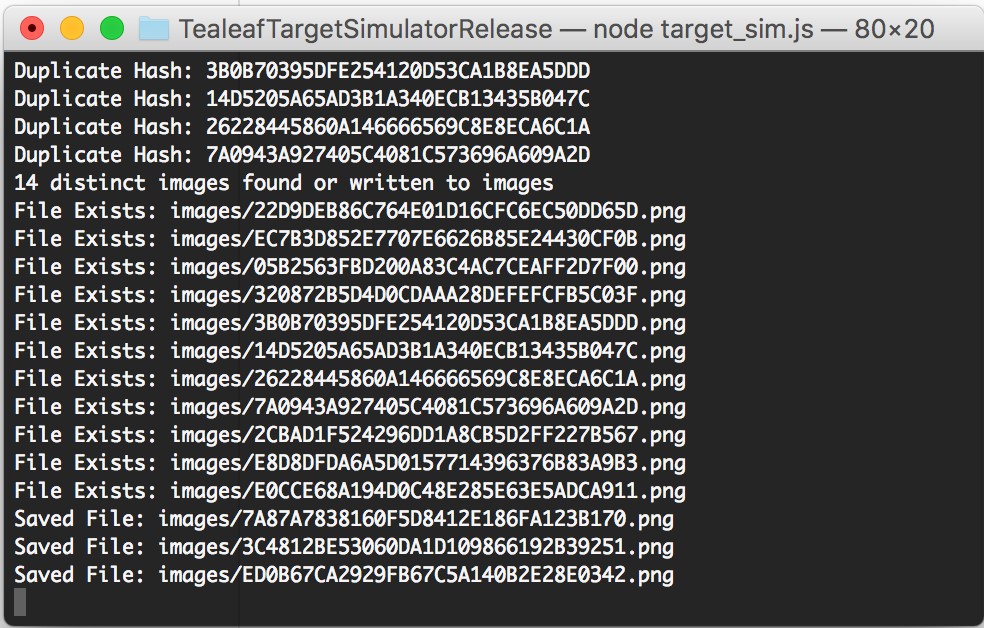
8. Add all content to the images folder
In the Target Simulator directory (where the target_sim.js is located), there is a folder called "images." All its content must be added to the "images" folder that is uploaded to Replay.
Expected outcome
You can use the Target Simulator tool to capture the images in your application and transfer them to the replay server for replay.
Note:For MD5, the image file name's length is 32. For SHA256, the image file name's length is 64. For SHA512, the image file name's length is 128.
Updated 7 months ago