
Add the Android SDK to your project
Overview
You add the Tealeaf SDK for Android to your application so it can capture user interface and application events. You manually install and configure the Tealeaf SDK in each application. Installing and configuring the Tealeaf SDK for Android involves these major steps:
- Move files to the proper locations in your application.
- Configure auto-instrumentation (AA).
- Configure properties, including application-specific URLs.
- Extend Application and Activity classes.
Before you begin
To get started, you need:
- The Tealeaf package.
- The Tealeaf sample application. You deploy the sample application that is provided by Tealeaf to test the capabilities and measure the effects of the Android SDK. Instead of integrating the Android SDK with your application in development, you deploy the sample application and complete any necessary configuration steps on the remainder of this page to begin to capture mobile app data into your instance of DANALYTICSMOBILE-MED.
- To understand and meet the Android development environment requirements.
- To understand Tealeaf impact on device resources.
In benchmark tests, the Android SDK has the following effects on resources of the visitor's device.- 2-3% more memory consumption
Note:If the server is unreachable, the SDK saves data to memory until the server is reachable. By default the SDK will store up to 512000 bytes to the device memory. If the cache grows larger than 512000 bytes, the oldest data is truncated from cache and is deleted. The cache size is managed through the
CachedFileMaxBytesSizesetting inEOCoreAdvancedConfig.json.
- Minimal effect on battery life
For more information, see the [Tealeaf SDK for Android overview page}(https://developer.goacoustic.com/acoustic-exp-analytics/docs/acoustic-experience-analytics-tealeaf-sdk-for-android-standard-and-mobile-editions).
Install the Tealeaf Android SDK
After you acquire Tealeaf Android SDK, you can install the SDK as a package using Rakefile or you can manually install the SDK into your application project.
Using Rakefile to install the SDK eases the installation and integration process by automatically performing most integration steps that would otherwise be performed manually.
Note:The rake tool should be used as a helper tool to auto install the Tealeaf Android SDK and setup common instrumentation scenario. You may need to manually install the SDK if it is not compatible with your project.
Installing with Rakefile
Before you can use Rakefile to install the Android SDK, the following items must already be installed:
- Ruby v1.9.3
- Ruby gems
For more information on these requirements, see Ruby and Download RubyGems.
To install the SDK as a package using Rakefile, follow these steps:
- From a command line, use the following Rakefile commands to complete a new SDK integration with Android Studio for an on-premises or on Cloud installation.
Tealeaf on-premise:
rake modulePath="/Users/<username>/dev/RTC_Production/AndroidSrc/FragManualClean/app"
postMessageUrl="https://<target_URL>/TealeafTarget.php"
 killswitchUrl="https://<target_URL>/killswitch.php"
Tealeaf on Cloud:
rakemodulePath = "/Users/<username>/dev/RTC_Production/AndroidSrc/FragManualClean/app"
postMessageUrl = "https://lib-eu-1.brilliantcollector.com/collector/collectorPost"
killswitchUrl = "https://lib-eu-1.brilliantcollector.com/collector/switch/<APP_KEY>"
appKey = "<APP_KEY>"
where,
- modulePath: Defines the path where Android Studio module is located. Note: In the example, replace
with the active user name. - postMessageUrl: Points to the URL POST of the target page. Note: In the example, replace <target_URL> with the IP address for the target page.
- killSwitchUrl: Points to the URL of the kill switch. Note: In the example, replace <target_URL> with the URL for the kill switch, and <APP_KEY> with the appKey.
- appKey: Defines the application key value for Tealeaf. In the example, replace <APP_KEY> with the application key value.
Manually installing the Android SDK libraries into an Android application project
To manually install the Android SDK libraries into an Android application project, follow these steps. Note: Your Android Studio project must include the frameworks that follow in steps 1 to 3.
- Install the
EOCore.jarandTealeafMod.jarinto the libs folder of your Android application to make the capture functions available in your application. Add the files into the build path of the application you want to instrument. - Integrate Tealeaf SDK files into your Android project by copying the following Tealeaf SDK files to the specified folder for your Android project.
| File name | Android project location |
|---|---|
| TealeafBasicConfig.propertie | assets folder |
| TealeafAdvancedConfig.json | assets folder |
| TealeafLayoutConfig.json | assets folder |
| EOCoreBasicConfig.properties | assets folder |
| EOCoreAdvancedConfig.json | assets folder |
| eocore.jar | libs folder |
| tealeafmod.jar | libs folder |
Note:In Android Studio, you will need to add the following files to the build.gradle file. Use the following snippet as an example of how to add the files to build.gradle, where xx.x.x is replaced with the version number of the Android library instance.
dependencies {
    compile files('libs/eocore.jar')
    compile files('libs/tealeafmod.jar')
}- After you have integrated the Tealeaf SDK files with your Android project, use the following procedure to register the Tealeaf SDK files in
AndroidManifest.xml.
a. OpenAndroidManifest.xmlin an editor.
b. Add the following permissions:
<uses-permission android:name="android.permission.INTERNET"/>
<uses-permission android:name="android.permission.ACCESS_NETWORK_STATE"/>
<uses-permission android:name="android.permission.ACCESS_WIFI_STATE"/>
c. If you want to enable geolocation data, add the following permission:
<uses-permission android:name="android.permission.ACCESS_FINE_LOCATION"/>d. Save and close AndroidManifest.xml.
Implement Android Auto Instrumentation
The Android SDK supports limited auto-instrumentation for new applications. The SDK uses the TeaCuts library module and AspectJ to support auto-instrumentation for the Activity, Application, and UI aspects. This simplifies the number of API calls that you must make in your application to instrument DANALYTICSMOBILE-MED.
TeaCuts library
The TeaCuts library is part of the Android package. You add the library using the plugin application with an AspectJ build. This weaves the Tealeaf library into your application and produces a final android APK that adds logging functions to your application.
Supported configuration:
AspectJ plugin 4.2.1
Android Gradle Plugin 4.0.0
Gradle 6.1.1
Note: There's a known issue using AspectJ plugin with Android Gradle Plugin version 4.1.1 and above. Please use manual SDK instrumentation instead. Use the below link to the sample app for reference:
https://github.com/acoustic-analytics/SampleCode_Tealeaf_Android_DarkHoloManual
Configure the TeaCutsBasicConfig.properties file.
- When enabled, auto instrumentation will try to set up OnClick event listener with
OnGlobalLayoutListener.
TextViewEnabled=true
Note:Set the value to false if TextView based controls does not respond to click events due to an unexpected event listener timing issue.
- When enabled,
EditTextcontrol will be auto instrumented.EditTextEnabled=true - When Fragment lifecycle events are defined, layout/type 10 is auto instrumented.
FragmentLifecycleEnabled=true - This setting is deprecated, needs to default to false on T
ealeafMod version >= 10.2.1.260When below property is set to true,onResume/onPauselifecycles are auto instrumented.ActivityLifecycleEnabled=false
Common use case scenarios for lifecycle events - onResume, onPause, onDestroy
Use Case 1:
Use Case 1:
If your app uses Activities only for screen content, use these settings.
ActivityLifecycleEnabled=**false**
FragmentLifecycleEnabled=**false**
Use Case 2:
If your app uses Fragments only for screen content, use these settings.
FragmentLifecycleEnabled=**true**
ActivityLifecycleEnabled=**false**
Use Case 3:
If your app needs to more precise timing of when to log screen layout, then use these settings and manual implementation.
FragmentLifecycleEnabled=**false**
ActivityLifecycleEnabled=**False**- The following code snippet shows manual logging for type 10 or screen. Place in your Fragment setup below lifecycle events.
private String TAG = "MyLogicalPageName";
public void onPause() {
    Tealeaf.onPause(this, TAG);
    super.onPause();
}
public void onResume() {
    Tealeaf.onResume(this, TAG);
    super.onResume();
}
public void onDestroy() {
    Tealeaf.onDestroy(this, TAG);
    super.onDestroy();
}
private val TAG = "MyLogicalPageName"
public override fun onPause() {
Tealeaf.onPause(this, TAG)
super.onPause()
}
public override fun onResume() {
Tealeaf.onResume(this, TAG)
super.onResume()
}
public override fun onDestroy() {
Tealeaf.onDestroy(this, TAG)
super.onDestroy()
}- Call the following API in your code when the network data and UI screen is ready for logging.
Tealeaf.logScreenLayout(**this**, "logicalPageName", 500);
Supported aspects
The TeaCuts library incorporates logging functions for:
- Navigation logging (Type 10 screen layout)
- UI event logging (Type 4 UI events)
- Gestures (Type 11 UI event)
Implement AAI into your application project
Installing the Tealeaf Android SDK with Rakefile steps normally would install necessary Tealeaf artifacts into your application. However, in case of unexpected problems, you may complete the following steps to implement the auto instrumentation library into your application.
Android Studio implementation
Before you begin implementing AAI into Android Studio, install the Android Studio IDE 1.4.1 or later IDE.
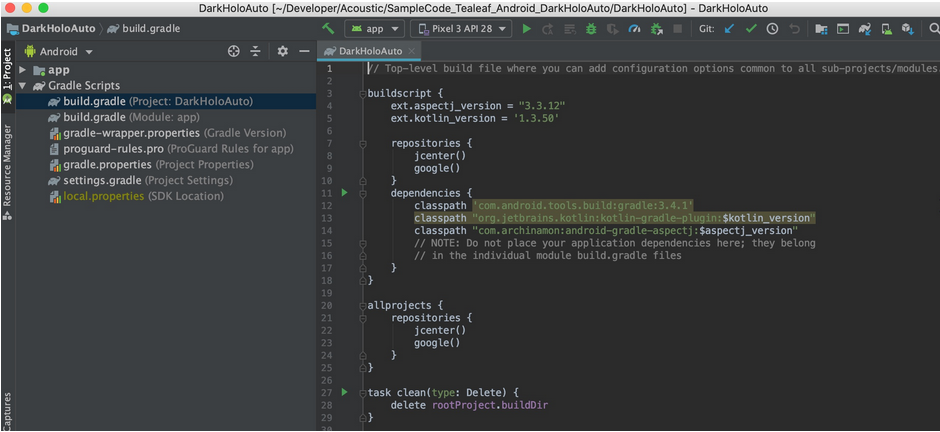
Begin the implementation process for Android Studio:
-
Copy and paste the following jar files from the distribution folder to your module's libs folder:
AndroidRelease/Tealeaf/TealeafMod/eocore.jar
AndroidRelease/Tealeaf/TealeafMod/tealeafmod.jar
AndroidRelease/Tealeaf/TeaCuts/teacuts.jar -
Install and setup the required Tealeaf libraries in the gradle file (build.gradle):
// Required for auto instrumentation library
apply plugin: 'com.archinamon.aspectj'
// Optional Kotlin support
apply plugin: 'kotlin-android'
apply plugin: 'kotlin-android-extensions'- Insert the following snippet into the dependencies section:
{
    implementation fileTree(include: ['*.jar'], dir:'libs')
    implementation files('libs/eocore.jar')
    implementation files('libs/tealeafmod.jar')
    implementation files('libs/teacuts.jar')

    // Optional for Kotlin support
    implementation 'org.jetbrains.kotlin:kotlin-stdlib-jdk8:1.3.50'
    implementation 'androidx.appcompat:appcompat:1.0.0'
    implementation 'androidx.legacy:legacy-support-v4:1.0.0'
}- Replace xx.x.x with the version number of the Android library instance.
- Insert the following snippet to use jars that are managed by Maven Central.
buildscript {
    ext.aspectj_version ="4.2.1"
// Optional for Kotlin support
    ext.kotlin_version ='1.3.50'

    repositories {
        jcenter()
        google()
    }
    dependencies {
        classpath 'com.android.tools.build:gradle:4.0.0'
        classpath "org.jetbrains.kotlin:kotlin-gradle-plugin:$kotlin_version"
        classpath "com.archinamon:android-gradle-aspectj:$aspectj_version"
    }
}

allprojects {
    repositories {
        jcenter()
        google()
    }
}- Insert the following snippet to the end of the file to enable weaving during AspectJ compiling.
aspectj {
    includeAllJars true
    includeJar 'teacuts'
    includeAspectsFromJar 'teacuts'
}
Overide lifecycle events in Application and Activity classes for AAI classes.
Extending and overriding standard classes to enable the AAI hook into the application and activity lifecycle events. If you want to trace events through AAI, you should use the following code samples to override the extended application and activity classes. Note: You can import a sample application from the distribution folder AndroidRelease/Tealeaf/SampleCode/DarkHoloAuto.
-
Copy and paste the following configuration files from the distribution folder to your project assets folder:
AndroidRelease/Tealeaf/TealeafMod/TealeafBasicConfig.properties
AndroidRelease/Tealeaf/TealeafMod/EOCoreBasicConfig.properties
AndroidRelease/Tealeaf/TealeafMod/TealeafAdvancedConfig.json
AndroidRelease/Tealeaf/TealeafMod/EOCoreAdvancedConfig.json
AndroidRelease/Tealeaf/TeaCuts/TeaCutsAdvancedConfig.json
AndroidRelease/Tealeaf/TeaCuts/TeaCutsBasicConfig.properties -
Make sure that
DisableAutoInstrumentationis set toDisableAutoInstrumentation=falseinTealeafBasicConfig.properties.
Sample base Application class:
public class MyApplication extends Application {
    @Override
    public void onCreate() {
        super.onCreate();
        // Enable Tealeaf library
        Tealeaf.enable(this)
}- Once the AAI integration steps are complete and the SDK library is enabled, the following logcat message is displayed when the app is launched in the emulator.
LogCat output:"Auto Instrumentation is turned on successfully." - In order to instrument gesture events, the following hook is required by the AspectJ auto instrumentation library.
public boolean dispatchTouchEvent(MotionEvent e) {
            return super.dispatchTouchEvent(e);
        }
Disable lifecycle events for activities and fragments during auto instrumentation
If auto instrumentation is turned on with AspectJ, each lifecycle event methods such as onResume or onPause defined in source code are used as hooks to enable auto layout. To avoid duplicate API calls, you can disable the lifecycle events during auto instrumentation by editing TeaCutsBasicConfig.properties.
By default, lifecycle events are enabled. To disable lifecycle events for activities and fragments, add the following snippet to TeaCutsBasicConfig.properties.
ActivityLifecycleEnabled=false
FragmentLifecycleEnabled=false
Use the manual instrumentation steps to log screen views and screen layouts.
Use the AutoLayout controller to enable type 10 screen logging for native mobile applications
Screen logging for a native mobile application can be enabled by configuring the AutoLayout controller instead of adding custom code to enable screen logging in your application.
The Tealeaf Android SDK can use the settings that are defined in TealeafLayoutConfig.json to log type 10 screen layouts for screenviews of native mobile application sessions. The AutoLayout controller also enables the application to automatically continue logging type 10 screen layouts when it resumes to the foreground. You can replay a mobile app session in cxImpact Browser Based Replay as you would an HTML web session instead of viewing the mobile app session as a series of screen captures.
TealeafLayoutConfig.json is in the assets folder and is formatted as a JSON file.
Edit TealeafLayoutConfig.json to configure Autolayout to log screen layouts.
Sub entry | Description |
|---|---|
This entry is replacing do in Tealeaf SDK 10.3.4 (and later). | Boolean value Indicates if the screen should be tracked or not.
|
This entry is replacing screenViewName in Tealeaf SDK 10.3.4 (and later). | String value Provides the name of the screen to be shown during replay, instead of showing the view controller name or activity name. DisplayName is displayed during replay in the navigation list. If DisplayName is empty, view controller class name is used. For example, the DisplayName for a payments page might be Example: To set the value of DisplayName to Payment Screen:
|
This entry is replacing delay in Tealeaf SDK 10.3.4 (and later). | Numeric value The delay in milliseconds before Tealeaf SDK takes a layout capture of a screen. Increasing the value of this setting increases the amount of time that must pass between when the layout is loaded and when the layout logging action occurs. The Example: To set the delay between layout load and layout logging to 500 milliseconds:
|
ScreenShot This entry is replacing | Boolean value Indicates whether or not to capture screenshots on this screen.
Note: Android SDK per screen configuration is not supported in this release. Use |
This entry is replacing | Boolean value Indicates whether or not to track user events like type 4s or 11s.
|
CaptureLayoutOn | Numeric value The event to capture layout on. Never, or on first user gesture, or on screen change.
|
| Numeric value The event to capture screenshots for view controller load events: Never, or on first user gesture, or on screen changes.
Note: Android SDK does not support this property in this release. |
| Numeric value The event to capture the first screenshot on for a web view, if there is any.
|
NumberOfWebViewsThis entry is replacing numberOfWebviews and isWebView in Tealeaf SDK 10.3.4 (and later). If you set isWebView = false in earlier releases, you can now set NumberOfWebViews = 0. Non-zero values for NumberOfWebViews indicate the number of web views on a view controller. | Numeric valueIndicates the amount of webviews on the page. Default value is 0. |
CaptureScreenVisits | Boolean valueIndicates whether you want type 2 objects on pages that you set CaptureUserEvents to false. This property helps you understand how your users are using your application by showing how they get to a page. Default value is true. If you do not want to track screen load/unload events, set this entry to false. CaptureScreenVisits applies only if CaptureUserEvents = false. If CaptureUserEvents = true, CaptureScreenVisits is ignored and load/unload events are tracked because it doesn't make any sense to track user events on a screen where visits are not tracked. |
AppendMapIds | JSONAssigns an identifier to a target item. You can assign a readable identifier to the mid that maps to the target item. You can then configure events to fire when the identifier is encountered. You can use the same identifier for Android devices as well as iOS devices. When you assign the same identifier to your Android and iOS devices, you can create a single event in Event Manager that fires on the identifier. The event fires for both Android and iOS devices.Example: "AppendMapIds": { "[PWDV,0][ABOL,0][FL,0][TH,0][LL,0][TW,0][LL,1][LL,0]": { "mid": "LoginButton" }, "ibm.com.demoapp.main_activity_login:id/send": { "mid": "LoginButton" }Uses the mid setting to assign an identifier to two targets. The first target is for an iOS device and the second target is for an Android device. The target for both devices is identified as LoginButton. You can create a single event that fires when LoginButton is encountered in either application. |
The following snippet shows an example of the TealeafLayoutConfig.json file.
{
  "AutoLayout": {
    "IBMGlobalScreenSettings": {
      "ScreenChange": true,
      "DisplayName": "",
      "CaptureLayoutDelay": 500,
      "ScreenShot": false,
      "NumberOfWebViews": 0,
      "CaptureUserEvents": true,
      "CaptureScreenVisits": true,
      "CaptureLayoutOn": 2,
      "CaptureScreenshotOn": 0,
      "Masking": {
        "HasMasking": true,
        "HasCustomMask": true,
        "Sensitive": {
          "capitalCaseAlphabet": "X",
          "number": "9",
          "smallCaseAlphabet": "x",
          "symbol": "#"
        },
        "MaskIdList": [
          "textView1,login.password,editText*"
        ],
        "MaskValueList": [
          "test sensitive*",
          "^3[47][0-9]{13}$",
          "^4[0-9]{12}(?:[0-9]{3})?$"
        ]
      }
    },
    "AppendMapIds": {
      "com.any.package:id/givenIdOnXmlLayout1": {
        "mid": "giveAdditionalId1"
      },
      "com.any.package:id/givenIdOnXmlLayout2": {
        "mid": "giveAdditionalId2"
      }
    }
  }
You can also manually configure a screen to log a layout by adding the following code snippet.
Tealeaf.logScreenLayout(activity, "Name", delayInMS);
Capture specific pages by pausing and resuming the library
There are two ways of pausing and resuming the library:
- Edit TealeafLayoutConfig.json. This is the preferred method.
- Call TealeafLayoutConfig.json.
Edit TealeafLayoutConfig.json
By default, if you are missing the IBMGlobalScreenSettings section, you have the following defaults, which capture all pages, events, and gestures, but no screenshots:
"AutoLayout": {
  "IBMGlobalScreenSettings": {
    "ScreenChange": true,
    "DisplayName": "",
    "CaptureLayoutDelay": 0,
    "ScreenShot": false,
    "NumberOfWebViews": 0,
    "CaptureUserEvents": true,
    "CaptureScreenVisits": true,
    "CaptureLayoutOn": 2,
    "CaptureScreenshotOn": 0
  },

},
"AppendMapIds": {

}
You use CaptureUserEvents to indicate that you want to pause the library and no longer capture information on a page. To pause the library, set CaptureUserEvents to false. To resume the library, set CaptureUserEvents to true. Remember that pausing the library pauses only capture of user events. If you do not want to capture screens at all, set ScreenChange to false. If you do not want to capture screen visits, set CaptureScreenVisits to false.
For example, to capture all data except for user events on "FirstViewController" which is the first page, enable the library to resume on "SecondViewController", which is the second page.
{
  "AutoLayout": {
    "IBMGlobalScreenSettings": {
      "ScreenChange": true,
      "DisplayName": "",
      "CaptureLayoutDelay": 0,
      "ScreenShot": false,
      "NumberOfWebViews": 0,
      "CaptureUserEvents": true,
      "CaptureScreenVisits": true,
      "CaptureLayoutOn": 2,
      "CaptureScreenshotOn": 0
    },
    "FirstActivity": {
      "ScreenChange": false,
      "DisplayName": "First Screen",
      "CaptureLayoutDelay": 0,
      "ScreenShot": false,
      "NumberOfWebViews": 0,
      "CaptureUserEvents": false,
      "CaptureScreenVisits": false,
      "CaptureLayoutOn": 0,
      "CaptureScreenshotOn": 0
    },
    "SecondActivity": {
      "ScreenChange": true,
      "DisplayName": "Second Screen",
      "CaptureLayoutDelay": 0,
      "ScreenShot": false,
      "NumberOfWebViews": 0,
      "CaptureUserEvents": true,
      "CaptureScreenVisits": true,
      "CaptureLayoutOn": 2,
      "CaptureScreenshotOn": 0
    }
  },
  "AppendMapIds": {

  }
}
Additionally, you can disable capture of all data except for specific pages, as shown in the following example.
{
  "AutoLayout": {
    "IBMGlobalScreenSettings": {
       "ScreenChange": false,
       "DisplayName": "",
       "CaptureLayoutDelay": 0,
       "ScreenShot": false,
       "NumberOfWebViews": 0,
       "CaptureUserEvents": false,
       "CaptureScreenVisits": false,
       "CaptureLayoutOn": 0,
       "CaptureScreenshotOn": 0
    },
    "FirstActivity": {
      "ScreenChange": true,
      "DisplayName": "First Screen",
      "CaptureLayoutDelay": 0,
      "ScreenShot": false,
      "NumberOfWebViews": 0,
      "CaptureUserEvents": true,
      "CaptureScreenVisits": true,
      "CaptureLayoutOn": 2,
      "CaptureScreenshotOn": 0
    },
    "SecondActivity": {
      "ScreenChange": true,
      "DisplayName": "Second Screen",
      "CaptureLayoutDelay": 0,
      "ScreenShot": false,
      "NumberOfWebViews": 0,
      "CaptureUserEvents": true,
      "CaptureScreenVisits": true,
      "CaptureLayoutOn": 2,
      "CaptureScreenshotOn": 0
    }
  },
  "AppendMapIds": {

  }
}
For more information about configuring properties in TealeafLayoutConfig.json for pausing and resuming the library, see Table 1.
Call TealeafLayoutConfig.json programmatically
Use IBMGlobalScreenSettings to set values for all view controllers in TealeafLayoutConfig.json that are not documented.
If you want to call TealeafLayoutConfig.json programmatically, go to the page where you want to start pausing the library on onStart and onResume, which is always called when an activity is displayed.
@Override
protected void onResume() {
        Tealeaf.pauseTealeaf();
        super.onResume();
}

@Override
protected void onStart() {
        Tealeaf.pauseTealeaf();
        super.onStart();
}
override fun onResume() {
Tealeaf.pauseTealeaf()
super.onResume()
}
override fun onStart() {
Tealeaf.pauseTealeaf()
super.onStart()
}Next, go to the page where you want to start resuming the library on onPause, which is always called when an activity is displayed.
@Override
protected void onPause() {
        Tealeaf.resumeTealeaf(true);
        super.onPause();
}
override fun onPause() {
Tealeaf.resumeTealeaf(true)
super.onPause()
}Configure Tealeaf properties
You must configure several items for your app for use with DANALYTICSMOBILE-MED, including:
- how screen layouts are logged
- target-page location
- kill-switch location
- whether to log gestures
- Specific URLS for logging events
- Message flow
- Logging levels
All of the configuration in this task involves modifying settings in the EOCoreBasicConfig.properties and TealeafBasicConfig.properties file in the Assets folder of your project.
You can manually update configuration values by editing EOCoreBasicConfig.properties and TealeafBasicConfig.properties, or you can dynamically update the configuration values through an API.
The following table provides a list of properties that must be configured to work with your application:
Required property | Description |
|---|---|
Whether to display logcat messages. | This setting is enabled or disabled with the DisplayLogging property in EOCoreBasicConfig.properties.
|
Set the logging level | You can set the logging level based on where your project is in the development cycle. For example, you can set the level high for development and testing; then, lower the logging level for production. The logging level is set with the 0 through 3, where:
The log level can be set from
|
Enable and set kill switch | The kill switch is used to control logging. When the kill switch is enabled, it must have a URL to check before the framework initializes. When the page is reachable, the framework initializes. If the page is not reachable, because of network problems or because you disabled it on your server, the framework does not initialize. The kill switch URL is set by the person who sets up Tealeaf on the server. The kill switch is enabled with the KillSwitchEnabled property. The kill switch URL is set with the KillSwitchUrl property in TealeafBasicConfig.properties.
|
Set target URL | All events that are captured are sent in JSON format to a target page. The target page acknowledges the receipt of the JSON message and forwards the client-side events to Tealeaf. The person that sets up Tealeaf on the server creates the target page. The target page is set with the |
Set how screen layouts are logged | Tealeaf can log screen images as Base64 or as MD5 checksum with PNG or JPG images.
GetImageDataOnScreenLayout=false creates smaller payloads in production and is the recommended setting. |
| Auto-instrumentation | Android enables the use of one handler at a time for any object. As a result, auto-instrumentation is not supported in Tealeaf. You must apply instrumentation as part of your application development. |
To manually customize your configuration, you can use a text editor to modify the values for each property in EOCoreBasicConfig.properties and TealeafBasicConfig.properties. Follow these steps:
- In your project, open the EOCoreBasicConfig.properties file.
- Set the LoggingLevel to an appropriate level for development, testing, or production.
- Open the TealeafBasicConfig.properties file.
- Set the DisplayLogging to false for production and to true for development.
- Set the PostMessageUrl to the URL of the target page for your app.
- Set the KillSwitchEnabled to true.
- Set the KillSwitchUrl to the URL for the kill switch for your app.
- Set the GetImageDataOnScreenLayout to false for production and to true for development.
- Set the LoggingLevel to an appropriate level for development, testing, or production.
- Save and exit both files.
To update configuration values dynamically through an API, use the following API call structure to update a configuration value:
EOCore.updateConfig(**final** **String** key, **final** **String** value,
        final EOLifecycleObjectName module)
Examples:
The following API call can be used to update a configuration value that is stored in EOCoreBasicConfig.properties:
EOCore.updateConfig("key", "value", EOCore.getInstance())
Where key is the configuration property that you want to update and value is the value that you want to assign to the configuration property.
The following API call can be used to update an application configuration value that is stored in TealeafBasicConfig.properties:
EOCore.updateConfig("key",
"value",
TealeafEOLifecy
Where key is the configuration property that you want to update and value is the value that you want to assign to the configuration property.
Android Required Permissions
Add permissions to AndroidManifest.xml.
<uses-permission android:name="android.permission.INTERNET"/>
<uses-permission android:name="android.permission.ACCESS_NETWORK_STATE"/>
<uses-permission android:name="android.permission.ACCESS_WIFI_STATE"/>
Enable screen logging in fragments
Tealeaf cannot automatically identify when a fragment is rendered. If your application uses fragments, place the following code into each fragment to enable screen logging for the fragment.
@Override
public void onResume(){
    super.onResume();
    Tealeaf.onResumeFragment(getActivity(), "", this);
}

@Override
public void onPause(){
     super.onPause();
    Tealeaf.onPauseFragment(getActivity(), "", this);
}
override fun onResume() {
super.onResume()
Tealeaf.onResumeFragment(activity, "", this)
}
override fun onPause() {
super.onPause()
Tealeaf.onPauseFragment(activity, "", this)
}The Acoustic Tealeaf SDK for Android is installed in your application. Next, implement the Tealeaf SDK for Android functionality. For instructions, see Implementing the Tealeaf SDK for Android.
Updated 6 months ago