
Simplify Tealeaf Android SDK Instrumentation via Plugin
Skill Level:Intermediate
Overview
Introduction to our new CXA Plugin module that will provide seamless integration of CXA SDK into Android Projects.
Prerequisites
Android Studio
Java
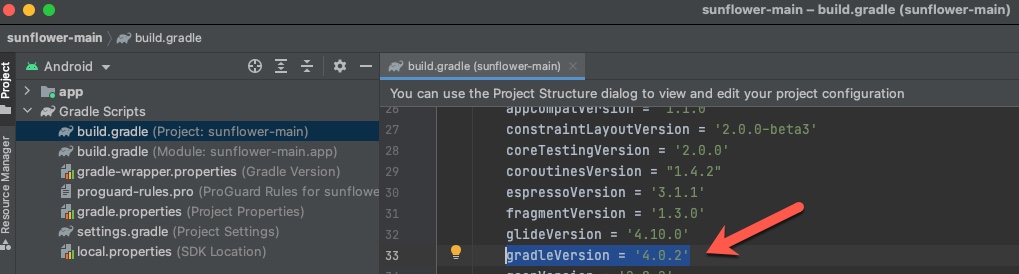
gradleVersion = '4.0.X'

gradle-6.1.1-all.zip
Step-by-step
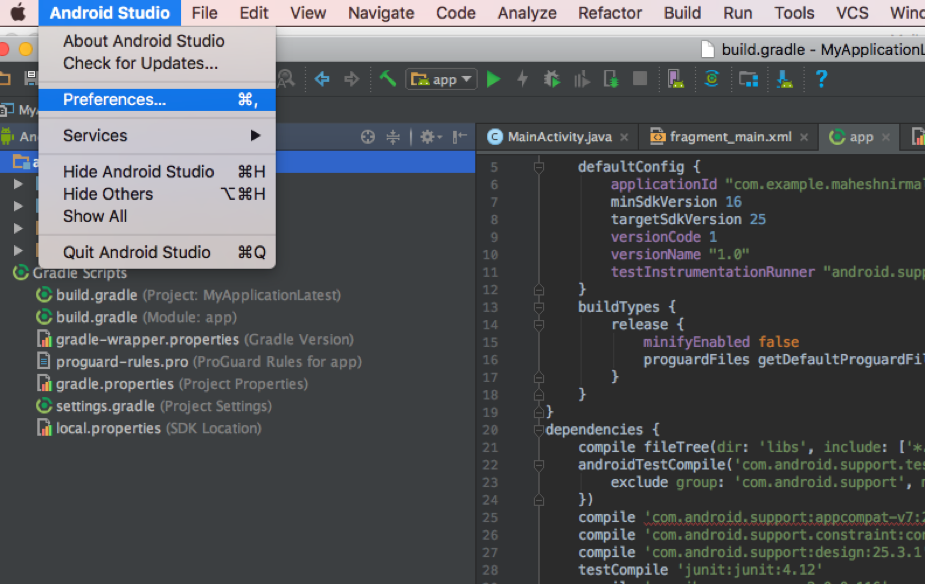
1. Open Android Studio and click Preferences
Open your Android mobile application project in Android Studio (Here is a link to download latest version of Android Studio and click Preferences
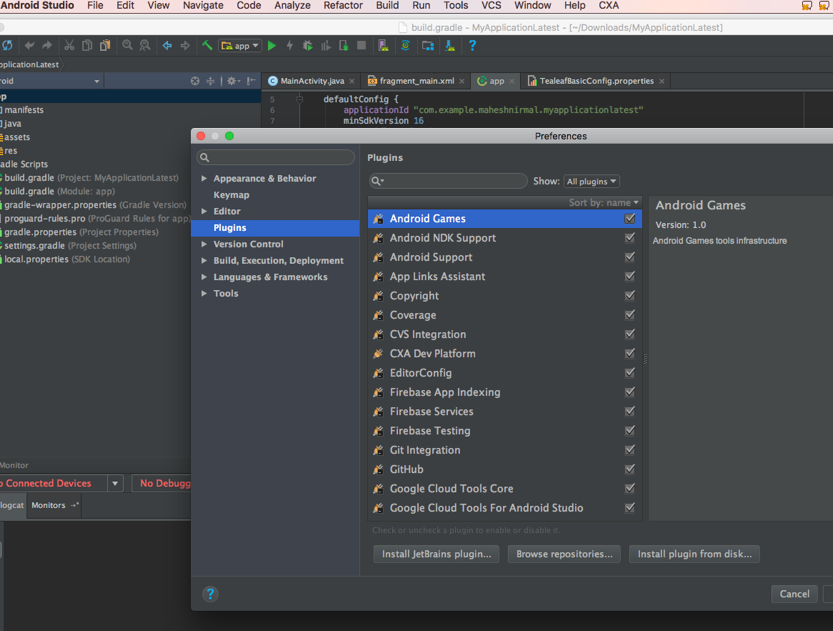
2. Select Plugin
Click on Plugins and click on Browse repositories
3. Install Plugin
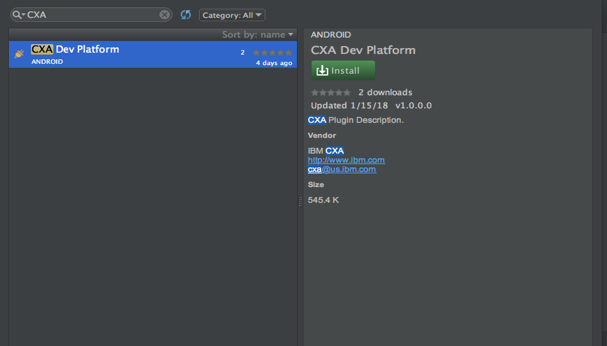
A list of available plugins are displayed. Type CXA click on green install button.
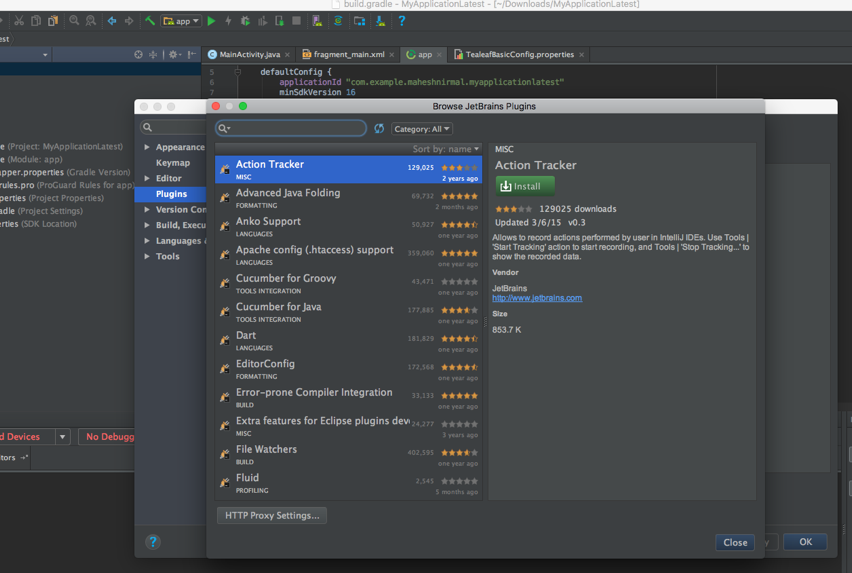
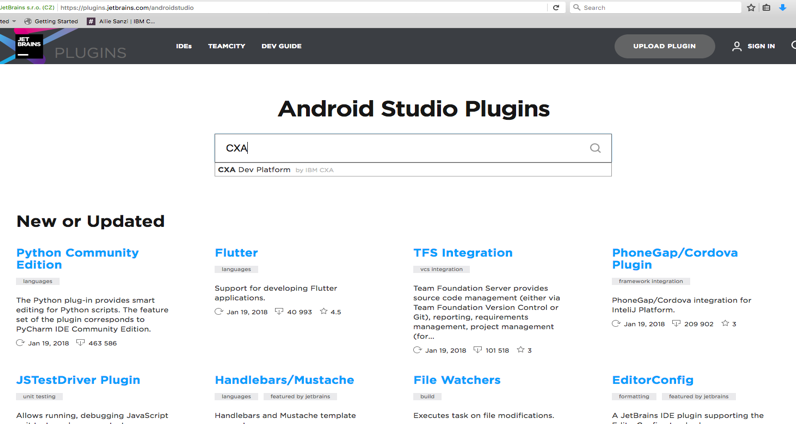
Alternatively, you can also visit https://plugins.jetbrains.com/androidstudio Search for CXA Plugin and download the latest version of the CXA Plugin jar and install it.
4. Restart Android Studio
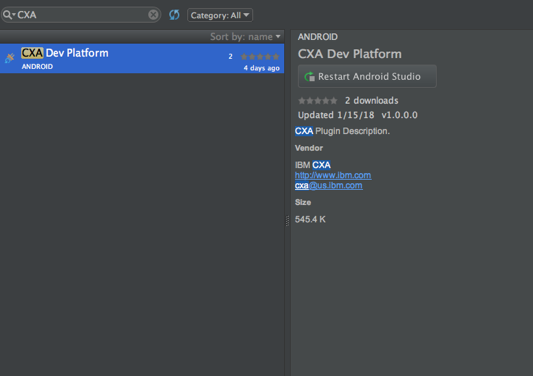
Click Restart Android Studio
5. Instrument
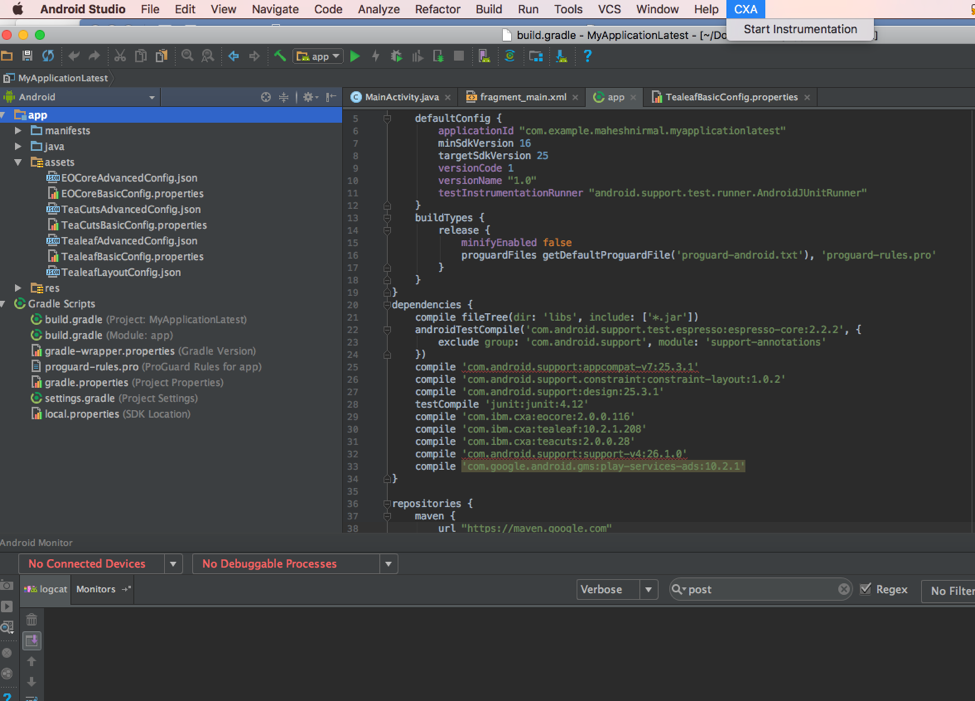
Once you restart Android Studio, you will see a new menu item called CXA. This means the plugin was installed successfully!
Go to the new menu item CXA - Click on Start Instrumentation. (You will notice CXA assets under the assets folder).
6. View Replay
It is very easy to use the SDK to post data to our cloud Replay Server. Open the TealeafBasic Config file (under assets folder) and provide the below two items:
Appkey (Please provide a valid app key) and PostMessageUrl (Example of US Data center url) used below:

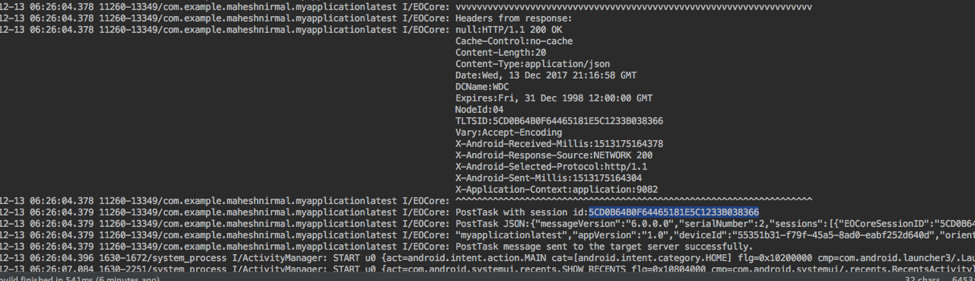
Compile and Run you project. If you see a POSTTASK ID generated then your data got posted successfully:
7. Troubleshooting
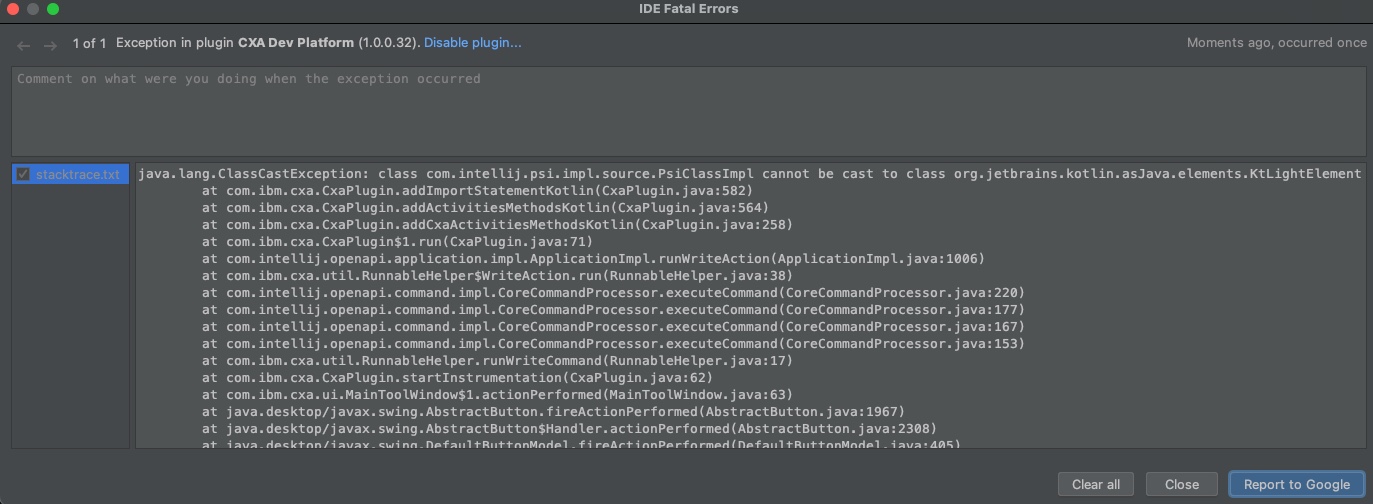
After running the app, clean project before using the plugin.
Updated 7 months ago