
Enable push notifications in a native iOS app
This guide walks you through enabling push notifications in your iOS app using the Acoustic Connect SDK.
The Connect SDK supports the following push notification features. Each is authored by your marketing team in Message composer:
- Thumbnail images in the collapsed notification, useful for branding such as a logo.
- Expandable content shown when the user expands the notification — either additional text or a full image.
- Actionable notifications, with a built-in action that fires when the user taps — open the app, call a number, or open a URL.
Language: Swift. Push notifications are not supported in Objective-C apps.
Availability: Pro, Premium, and Ultimate
Scope: Test setup — building, running on the simulator or a connected device, and verifying push delivery. For production setup, see Move your iOS integration to production.
Prerequisites
- Apple Developer Program membership — Push notifications require a paid account. Required role: Account Holder or Admin.
- Connect iOS SDK 2.0.8 or later (2.1.15 recommended), with an app key that supports push notifications. If you have not yet integrated the SDK, follow Integrate the Connect SDK into a native iOS app. To upgrade an existing integration, see Update the Connect iOS library.
Overview
- You — generate an APNs authentication key
- You — share your push notification credentials with your Connect administrator
- Connect administrator — uploads your APNs credentials to your Mobile app integration in Connect
- You — configure push notifications in the Apple Developer portal
- You — configure push notifications in Xcode
- You — add code to request notification permission from your users
Step 1: Get an APNs authentication key
Connect uses token-based APNs authentication. A single .p8 key works across all apps in your team.
- In your Apple Developer account, go to Certificates, Identifiers & Profiles > Keys > +.
- Enter a name (for example, "Acoustic Connect APNs") and enable Apple Push Notifications service (APNs).
- Click Configure next to Apple Push Notifications service (APNs) and set Environment to Sandbox & Production unless your security team requires tighter scoping. The key is accepted at both APNs hosts regardless of this selection — keeping both selected here means you won't need to rotate the key when you later move to production. This setting cannot be changed once saved.
- Click Save > Continue > Register.
- Download the
.p8file — Apple only allows you to download it once. - Note the Key ID shown on the confirmation page.
- Note your Team ID — a unique 10-value string in the top-right of the portal (displayed next to your Team Name).
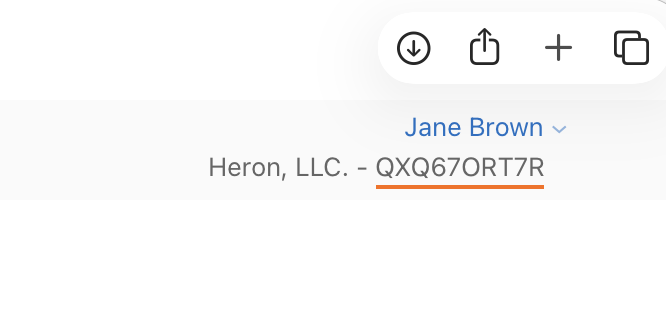
Step 2: Share push notification credentials with your Connect administrator
Share the following with your Connect administrator so they can enable push notifications in your Mobile app integration.
| Credential | Where to find it |
|---|---|
| Encryption key | The .p8 file you just downloaded |
| Key ID | The confirmation page, or the file name |
| Team ID | Top-right of the Apple Developer portal, or under Membership |
| Bundle ID | Your Xcode project |
| Environment | Sandbox — this guide covers test setup. Xcode sets the aps-environment entitlement automatically based on your build configuration. |
See Connect mobile apps in the Connect user guide.
Step 3: Configure push notifications in the Apple Developer portal
Push notifications in Connect require three components working together:
| Component | Purpose |
|---|---|
| Main app | Initializes the SDK with push configuration and requests notification permission from the user |
| Notification Service Extension (NSE) | Downloads rich media (images) and records delivery, including dismissed notifications |
| Notification Content Extension (NCE) | Renders the expanded notification view when the user long-presses a notification |
All three targets share an App Group — a shared container that lets them exchange push data. The App Group identifier must be identical across all three targets and your SDK configuration. A mismatch in any one location causes delivery tracking and rich media to silently fail.
Register or update your App ID
If you are registering a new App ID:
- In your Apple Developer account, go to Identifiers > +.
- Select App IDs > App and click Continue.
- Enter a description and your bundle ID (for example,
com.yourcompany.yourapp). - Under Capabilities, enable Push Notifications and App Groups.
- Click Continue > Register.
If your App ID already exists:
- Click the App ID in the list to open it.
- Under Capabilities, enable Push Notifications and App Groups.
- Click Save.
NoteXcode picks these changes up automatically when Automatically manage signing is enabled. You will confirm this at the start of Step 4.
Register App IDs for the extensions
Repeat the App ID registration for each extension target, enabling App Groups only. Unlike the main app, extension App IDs do not require the Push Notifications capability.
com.yourcompany.yourapp.NotificationServiceExtensioncom.yourcompany.yourapp.NotificationContentExtension
Create an App Group
- Go to Identifiers > + and select App Groups.
- Enter a description and an identifier using the
group.prefix convention (for example,group.com.yourcompany.yourapp). - Click Continue > Register.
- Go back to each of your three App IDs (main app, NSE, NCE) and assign the App Group you just created.
WarningThe App Group identifier is not the same as your bundle ID. It must start with
group.and be identical across all targets and your SDK configuration. Even a single character mismatch will cause delivery tracking and rich media to silently fail.
Step 4: Configure push notifications in Xcode
Confirm Xcode has picked up the portal changes
Start by confirming the capabilities and App Group you registered in the Apple Developer portal are visible to your Xcode project.
- Open your Xcode project and select the main app target.
- Go to Signing & Capabilities.
- Click + Capability. Push Notifications and App Groups should both appear in the list.
- Add App Groups. The identifier you created in Step 3 (for example,
group.com.yourcompany.yourapp) should be selectable. - Add Push Notifications. Only the main app target needs this capability — the NSE and NCE do not.
If either capability is missing from the + Capability list, or the App Group identifier is not selectable, Xcode has not yet picked up your portal changes. Try the following in order:
- Force a profile refresh. Go to Xcode > Settings > Accounts and click Download Manual Profiles. With Automatically manage signing enabled, this is usually all that's needed.
- Check the signed-in Apple ID. Confirm the Apple ID signed in to Xcode belongs to the same team as the developer account where the App IDs and App Group were registered.
Configure Info.plist
In your main app's Info.plist, add the following to enable background push delivery:
| Key | Type | Value |
|---|---|---|
| Required background modes | Array | (1 item) |
| Item 0 | String | App downloads content in response to push notifications |
Raw XML equivalent
<key>UIBackgroundModes</key>
<array>
    <string>remote-notification</string>
</array>
Initialize the SDK with push configuration
In your ConnectSDKManager (introduced in Integrate the Connect SDK into a native iOS app (Swift)), add a push: argument to the ConnectConfig passed to ConnectSDK.shared.enable(with:). Add the App Group identifier you created in Step 3 to your ConnectConfiguration enum:
private enum ConnectConfiguration {
    static let appKey = "YOUR_APP_KEY"
    static let postURL = "YOUR_COLLECTOR_URL"

    /// The App Group shared between the main app and notification extensions.
    /// Must match the App Group configured in your Apple Developer portal.
    static let appGroup = "group.com.yourcompany.yourapp"
}
Then update start() to pass a ConnectPushConfig:
func start() {
    let pushConfig = ConnectPushConfig(
        mode: .automatic,
        appGroupIdentifier: ConnectConfiguration.appGroup
    )

    ConnectSDK.shared.enable(
        with: ConnectConfig(
            appKey: ConnectConfiguration.appKey,
            postURL: ConnectConfiguration.postURL,
            push: pushConfig
        )
    )
}
NoteThe SDK manages APNs token registration and notification callbacks. Do not set your own
UNUserNotificationCenter.delegate— doing so will prevent push signals from being tracked in Connect. If your app needs a custom delegate, seeConnectSDKManager.swiftin the sample app for the manual-mode integration pattern.
Add the Notification Service Extension
The NSE downloads rich media and records push delivery.
Create the extension target
- In Xcode, go to File > New > Target.
- Select Notification Service Extension and click Next.
- Name it
NotificationServiceExtensionand ensure Embed in Application shows your main app. - Click Finish.
- If a confirmation message appears, select Activate. It can be useful for debugging.
Configure the NSE target
- In Xcode, select the NSE target.
- Go to General > Frameworks and Libraries and add the Connect library.
- Under Minimum Deployments, set the iOS version to match your main app's deployment target. Xcode defaults new extensions to the latest iOS version, which prevents the extension from loading on older devices.
- Go to Signing & Capabilities and add the App Groups capability.
- Select the App Group identifier you created in Step 3.
Implement the extension
Replace the generated NotificationService.swift with the following. Use the same App Group identifier as your main app.
import Connect

final class NotificationService: ConnectNotificationService, @unchecked Sendable {
    override var appGroupIdentifier: String? {
        "group.com.yourcompany.yourapp"
    }
}
Note
@unchecked Sendableis required when strict concurrency checking is enabled (Swift 6 or later, or when explicitly enabled in your build settings). You can omit it if your project does not use strict concurrency checking.
Verify the Info.plist
Xcode generates an Info.plist for the NSE target. Open it in the property list editor and verify the rows under NSExtension:
| Key | Type | Value |
|---|---|---|
| NSExtensionPointIdentifier | String | com.apple.usernotifications.service |
| NSExtensionPrincipalClass | String | $(PRODUCT_MODULE_NAME).NotificationService |
Add the Notification Content Extension
The NCE renders the expanded notification view when the user long-presses a notification.
Create the extension target
- In Xcode, go to File > New > Target.
- Select Notification Content Extension and click Next.
- Name it
NotificationContentExtension, ensure Embed in Application shows your main app, and click Finish. - If a confirmation message appears, click Activate.
Configure the NCE target
- In Xcode, select the NCE target.
- Go to General > Frameworks and Libraries and add the Connect library.
- Under Minimum Deployments, set the iOS version to match your main app's deployment target.
- Go to Signing & Capabilities and add the App Groups capability.
- Select the App Group identifier you created in Step 3.
Implement the extension
Replace the generated NotificationViewController.swift with the following. Use the same App Group identifier as your main app.
import Connect

final class NotificationViewController: ConnectNotificationContentExtension, @unchecked Sendable {
    override var appGroupIdentifier: String? {
        "group.com.yourcompany.yourapp"
    }
}
Configure the NCE Info.plist
Replace the contents of the NCE's Info.plist with the following. To switch to the raw mode, right-click the file and select Open As > Source Code.
<?xml version="1.0" encoding="UTF-8"?>
<!DOCTYPE plist PUBLIC "-//Apple//DTD PLIST 1.0//EN" "http://www.apple.com/DTDs/PropertyList-1.0.dtd">
<plist version="1.0">
<dict>
    <key>NSExtension</key>
    <dict>
        <key>NSExtensionAttributes</key>
        <dict>
            <key>UNNotificationExtensionCategory</key>
            <array>
                <string>ACOUSTIC_RICH_NOTIFICATION</string>
            </array>
            <!--
                Keep the system-default title/body banner visible above the NCE view.
                The NCE only appends the expansion content (image and/or expandedBody) below.
            -->
            <key>UNNotificationExtensionDefaultContentHidden</key>
            <false/>
            <!--
                Initial height-to-width ratio used before the view calls preferredContentSize.
                The view controller updates this dynamically once the image dimensions are known.
            -->
            <key>UNNotificationExtensionInitialContentSizeRatio</key>
            <real>1</real>
        </dict>
        <key>NSExtensionPointIdentifier</key>
        <string>com.apple.usernotifications.content-extension</string>
        <key>NSExtensionPrincipalClass</key>
        <string>$(PRODUCT_MODULE_NAME).NotificationViewController</string>
    </dict>
</dict>
</plist>
If you named your view controller class something other than NotificationViewController, update NSExtensionPrincipalClass to match. UNNotificationExtensionInitialContentSizeRatio can also be tuned if your expanded view has a known aspect ratio, though 1 is the right default for most projects.
Table view equivalent
| Key | Type | Value |
|---|---|---|
| NSExtension | Dictionary | (3 items) |
| NSExtensionAttributes | Dictionary | (3 items) |
| UNNotificationExtensionCategory | Array | (1 item) |
| Item 0 | String | ACOUSTIC_RICH_NOTIFICATION |
| UNNotificationExtensionDefaultContentHidden | Boolean | NO |
| UNNotificationExtensionInitialContentSizeRatio | Number | 1 |
| NSExtensionPointIdentifier | String | com.apple.usernotifications.content-extension |
| NSExtensionPrincipalClass | String | $(PRODUCT_MODULE_NAME).NotificationViewController |
In the property list editor, UNNotificationExtensionDefaultContentHidden shows as type Boolean with values YES or NO. NO is equivalent to <false/> in the underlying XML.
Delete the storyboard
Xcode generates a MainInterface.storyboard for the NCE. Delete this file and, if the row NSExtensionMainStoryboard is present in the NCE's Info.plist, remove it. The SDK handles all UI programmatically.
Step 5: Request notification permission
Your app must request notification permission from the user. Call it at an appropriate point in your app's UX — for example, after an onboarding screen that explains the value of notifications, rather than on first launch.
WarningiOS only shows the system permission dialog once. If the user denies it, the only way to re-enable notifications is through the Settings app. Design your UX accordingly.
Use requestAuthorization(options:) to request permission directly through the SDK, without importing UserNotifications or managing UNUserNotificationCenter callbacks yourself. Requires Connect iOS SDK 2.1.15 or later.
Add a requestAuthorization() method to your ConnectSDKManager:
extension ConnectSDKManager {

    func requestAuthorization() async {
        let push = try? ConnectSDK.shared.push
        let (granted, _) = await push?.requestAuthorization() ?? (false, nil)
        // granted = true if the user approved, false if denied
    }
}
Call it at the right moment in your UX:
Task {
    await ConnectSDKManager.shared.requestAuthorization()
}
To check the current permission state without prompting the user:
let status = try? await ConnectSDK.shared.push.getCurrentAuthorization()
// true  = granted, provisional, or ephemeral
// false = denied
// nil   = not yet determined
Use the manual approach if your app already manages its own UNUserNotificationCenter authorization flow. Add a requestAuthorization() method to your ConnectSDKManager and forward the result to the SDK:
import UserNotifications

extension ConnectSDKManager {

    func requestAuthorization() async {
        do {
            let granted = try await UNUserNotificationCenter.current()
                .requestAuthorization(options: [.alert, .badge, .sound])
            try await ConnectSDK.shared.push.didReceiveAuthorization(granted: granted, error: nil)
        } catch {
            try? await ConnectSDK.shared.push.didReceiveAuthorization(granted: false, error: error)
        }
    }
}
Call it at the right moment in your UX:
Task {
    await ConnectSDKManager.shared.requestAuthorization()
}
Note
ConnectSDK.shared.pushis@MainActor-isolated. In Swift 6, accessing it from a non-isolated context requires aTask { @MainActor in }wrapper to satisfy strict concurrency checking.
Testing
On the simulator — Instant verification
You can test basic push delivery in the simulator using .apns payload files. Create them in any text editor and drag them onto the running simulator to send a test notification. We keep ours in a TestPayloads/ folder inside the Xcode project.
NoteWhen creating your payload files, keep in mind:
- Replace
com.yourcompany.yourappin theSimulator Target Bundlefield with your app's bundle ID.- iOS limits notification titles to 50 characters and the combined title and body to 150 characters. For example, a 40-character title leaves up to 110 characters for the body.
A basic payload sends a plain notification. Add "mutable-content": 1 and a data.notification object to test rich push — iOS invokes the NSE to display expanded content. Add a data.action object to attach a tap action. The Rich tab below shows the same combination Message composer produces when a marketer sets each control independently.
{
    "Simulator Target Bundle": "com.yourcompany.yourapp",
    "aps": {
        "alert": {
            "title": "New arrivals",
            "body": "Fresh styles just landed. Open the app to take a look."
        },
        "sound": "default"
    }
}{
"Simulator Target Bundle": "com.yourcompany.yourapp",
"aps": {
"alert": {
"title": "Weekend sale",
"body": "Up to 40% off selected items. Tap to browse the full collection."
},
"mutable-content": 1,
"sound": "default",
"badge": 1
},
"data": {
"notification": {
"expandedImage": "https://httpbin.org/image/jpeg",
"expandedBody": "Discover our full range of discounted products. Limited time only."
},
"action": {
"type": "OPEN_URL",
"url": "https://acoustic.co",
"label": "Browse sale"
}
}
}{
"Simulator Target Bundle": "com.yourcompany.yourapp",
"aps": {
"alert": {
"title": "New offer",
"body": "Tap the View offer button to see the latest deals."
},
"category": "ACTIONABLE_NOTIFICATION",
"sound": "default",
"badge": 1
},
"data": {
"action": {
"type": "OPEN_URL",
"url": "https://acoustic.co",
"label": "View offer"
}
}
}{
"Simulator Target Bundle": "com.yourcompany.yourapp",
"aps": {
"alert": {
"title": "Welcome back",
"body": "Tap to open the app and see what's new."
},
"sound": "default",
"badge": 1
},
"data": {
"action": {
"type": "OPEN_APP",
"label": "Open app"
}
}
}{
"Simulator Target Bundle": "com.yourcompany.yourapp",
"aps": {
"alert": {
"title": "Need help?",
"body": "Tap the Call support button to reach our team."
},
"category": "ACTIONABLE_NOTIFICATION",
"sound": "default",
"badge": 1
},
"data": {
"action": {
"type": "OPEN_DIALER",
"phoneNumber": "5551234567",
"phoneNumberPrefix": "+1",
"label": "Call support"
}
}
}On a device — Real APNs delivery
Running from Xcode on a connected device routes pushes through Apple's APNs servers, exercising the Connect dashboard side of the loop that simulator file drops can't reach.
- Connect your device to your Mac and select it as the run target in Xcode.
- Build and run. Xcode uses a Development profile, which routes through Sandbox APNs.
- Grant notification permission when prompted. A new mobile contact is created in Connect, and your device is eligible to receive pushes.
- Coordinate with your marketing team to send a test push to your device.
- Verify the notification appears, images load, and push signals appear in the contact's activity feed in Connect.
Next step: Identify app users
Push setup is now complete and you can test push delivery as-is. To make the most of push notifications going forward, identify the people receiving them.
When someone opens your app for the first time, they are automatically added to Connect as an anonymous mobile contact. By default, the Connect SDK does not collect names, email addresses, or customer IDs, so these contacts cannot be matched to people your marketing team already knows. Identifying users lets you target push notifications to known contacts, attribute the rest of the user's session to that contact, and merge mobile activity with the rest of your audience data.
To identify users, send an identity signal at the appropriate moment in your auth flow:
- Identify users at sign-in (iOS) — when an existing user authenticates.
- Identify users at registration (iOS) — when a new user creates an account.
Troubleshooting
Push token not received
Possible causes:
- Running on the simulator — APNs tokens are not available on the simulator
- The user denied notification permission
remote-notificationis missing fromUIBackgroundModesinInfo.plist- The bundle ID in your Xcode project does not match the App ID with Push Notifications enabled in the Apple Developer portal
Rich push images not showing
Verify the following:
"mutable-content": 1is present in the push payload- The NSE target includes the Connect library
- The
appGroupIdentifierin the NSE exactly matches the main app - The image URL is accessible over HTTPS and is not too large
Push signals not appearing in Acoustic Connect
Verify the following:
- The
appKeyand collector URL in yourConnectConfigmatch the dashboard configuration - You are not setting your own
UNUserNotificationCenter.delegate - The App Group identifier is consistent across all three targets and your
ConnectPushConfig
Extension crashes on launch
Common causes:
- The Connect library is not linked to the extension target
NSExtensionPrincipalClassin the extension'sInfo.plistis incorrect — it must be$(PRODUCT_MODULE_NAME).YourClassName- The App Group entitlement is missing on the extension target
Troubleshooting tip
To enable SDK debug logging, add these environment variables with a value of 1 to your scheme (Product > Scheme > Edit Scheme > Run > Arguments > Environment Variables):
CONNECT_DEBUGTLF_DEBUGEODebug
When reporting an issue to our support team, always attach your debug log. It speeds up troubleshooting.
Duplicate notifications in the foreground
Symptom: A notification appears as both a system banner and an in-app alert.
Cause: You have set your own UNUserNotificationCenter.current().delegate, which overrides the SDK's transparent proxy and causes the notification to be presented twice.
Fix: Remove your custom delegate and let the SDK handle notification presentation. If you need a custom delegate, see ConnectSDKManager.swift in the sample app for the manual-mode integration pattern.
Updated 2 months ago