
Mask PII in session replay (iOS)
In session replay, the Connect SDK captures the content of your app's screens so they can be reviewed in Connect. UI elements that contain personally identifiable information (PII) — such as credit card numbers, home addresses, or names — must be masked before that content leaves the device. This guide shows how to mask the content of individual UI elements by referencing their accessibility identifiers, accessibility labels, or layout paths.
The SDK currently supports masking only. The masked content is replaced with a fixed xxxxx string before capture. Custom mask characters and per-element exclusion from capture (sometimes called "blocking") are not currently available. To disable capture for an entire screen, see Configure data capture settings in a native iOS app.
Languages: Swift and Objective-C
Availability: Ultimate. Masking applies to session replay captures, which are not produced on Pro and Premium subscriptions.
Before you begin
The masking configuration matches UI elements by one of three identifiers:
- Accessibility identifier (
accessibilityIdentifier) — the canonical iOS identifier for internal use. Not exposed to end users. Best for masking. - Accessibility label (
accessibilityLabel) — read aloud by VoiceOver. Use the label if it's already set for accessibility reasons; otherwise preferaccessibilityIdentifierto avoid confusing assistive technology. - Layout path — an XPath-style identifier generated by the SDK when an element has no accessibility identifier or label. Layout paths must be matched with a regular expression.
Assign an accessibilityIdentifier (or accessibilityLabel) to every UI element that captures PII. You can do this programmatically or in Xcode's Attribute Inspector.
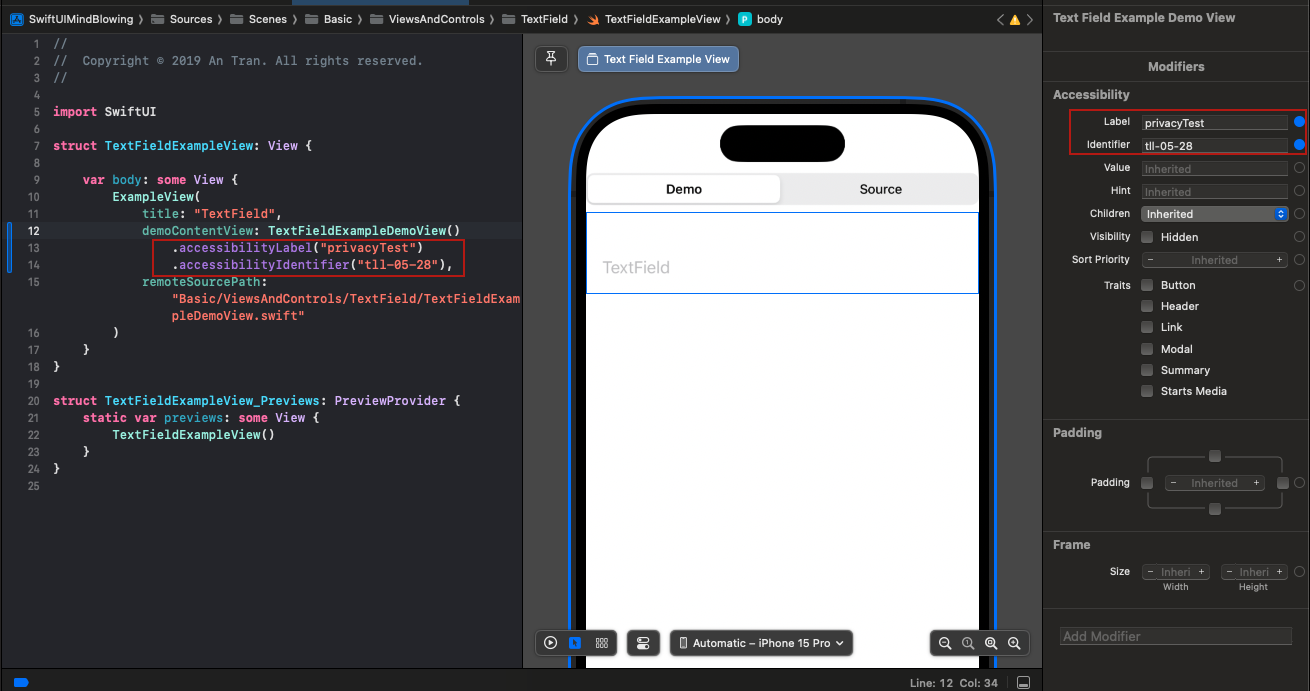
Cross-platform consistencyUsing the same accessibility labels and identifiers across the iOS and Android versions of an app is an industry standard. See Mobile Accessibility at W3C.
Configure masking
The SDK reads masking rules from a ConnectLayoutConfig.json file in your app bundle. The default ConnectConfig.Layout parameter is .loadFromBundle(), so as long as the file is present in the bundle, the SDK picks it up automatically — no additional code is required.
Step 1: Add ConnectLayoutConfig.json to your project
ConnectLayoutConfig.json to your project- Download
ConnectLayoutConfig.jsonfrom the sample app repository. - Add the file to your Xcode project and assign it to your main app target.
- Confirm the file appears under Build Phases > Copy Bundle Resources for the target.
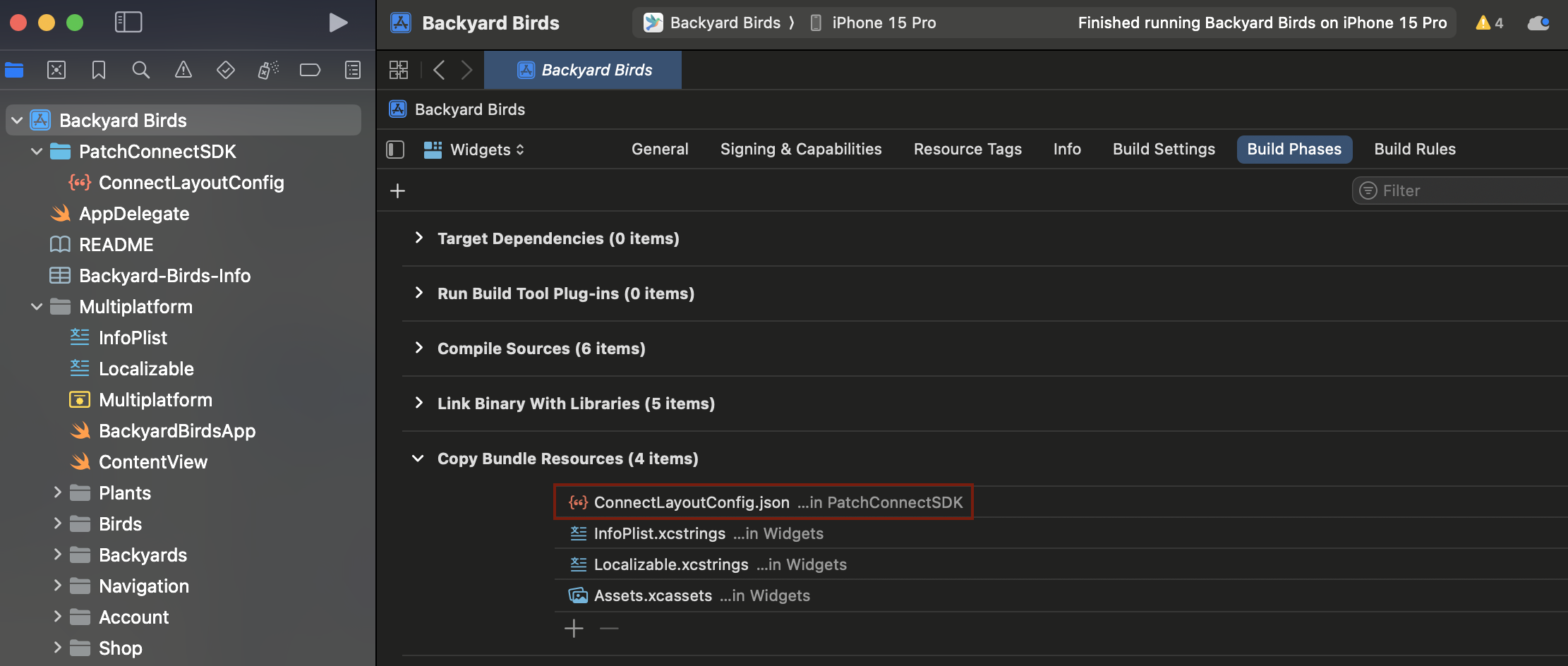
Step 2: Define masking rules
Open ConnectLayoutConfig.json and add masking rules under the AutoLayout object. You can define:
- A global rule that applies to every screen, under
AutoLayout.GlobalScreenSettings. - A screen-specific rule that overrides the global rule on one screen, under
AutoLayout.ScreenNamewhereScreenNameis the name of the view controller.
You can combine both in the same file. The example below masks two accessibility identifiers on every screen, and an additional set of fields on the payment screen specifically.
{
  "AutoLayout": {
    "GlobalScreenSettings": {
      "Masking": {
        "HasMasking": true,
        "MaskAccessibilityIdList": [
          "loginName",
          "securityQuestion"
        ],
        "MaskAccessibilityLabelList": [
          "Health conditions",
          "Medications taken"
        ],
        "MaskIdList": [
          "^9[0-9][0-9][0-9]$"
        ]
      }
    },
    "PaymentViewController": {
      "Masking": {
        "HasMasking": true,
        "MaskAccessibilityLabelList": [
          "Card Number",
          "Billing Address"
        ]
      }
    }
  }
}
Validate the file with any JSON validator before building.
Step 3: Rebuild and verify
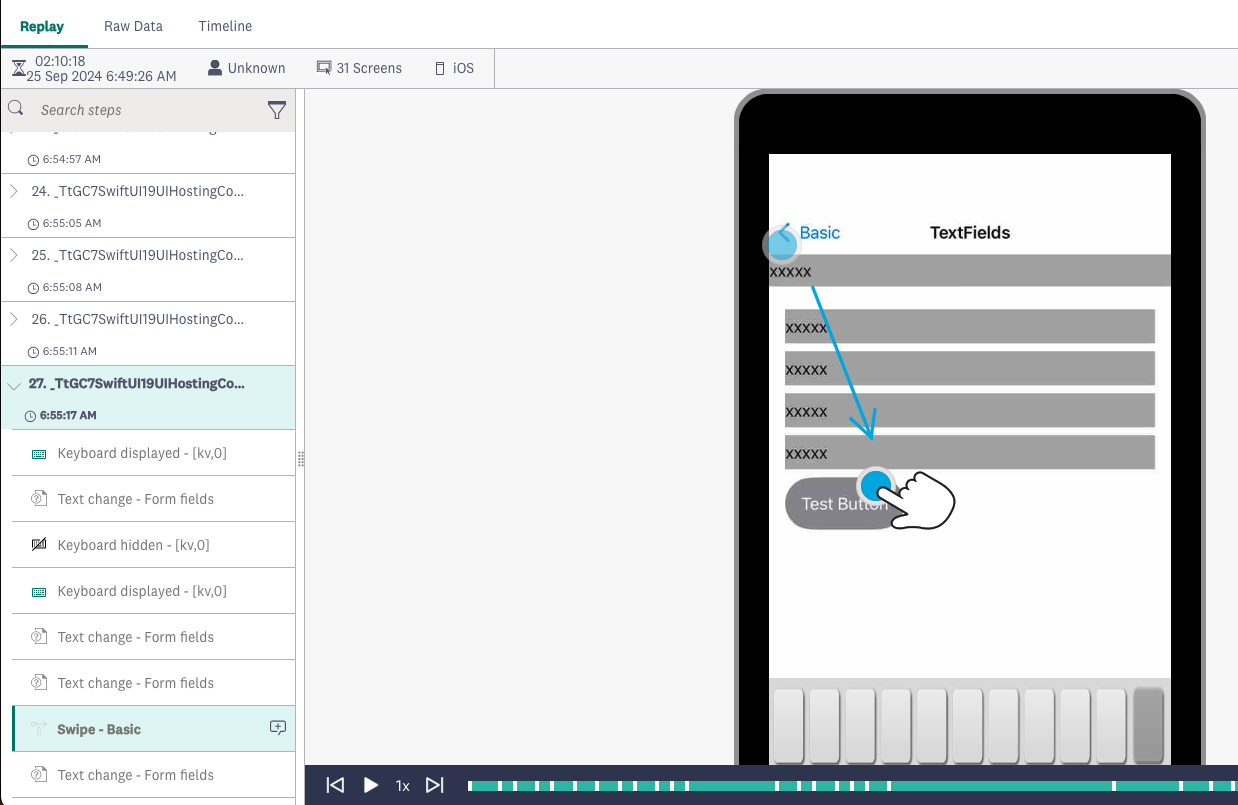
Build and run the app. The SDK reads the bundled file on initialization. Enter sample text into a masked field, find the session in Connect, and check that the input appears as xxxxx in the captured data.
Masking properties
The Masking object inside GlobalScreenSettings or a per-screen object accepts the following keys.
| Property | Type | Description |
|---|---|---|
HasMasking | Boolean | Set to true to enable masking. |
MaskAccessibilityIdList | Array of strings | Accessibility identifiers (accessibilityIdentifier) of the elements to mask. |
MaskAccessibilityLabelList | Array of strings | Accessibility labels (accessibilityLabel) of the elements to mask. |
MaskIdList | Array of strings | Regular expressions that match the SDK-generated layout paths of the elements to mask. Use this only for elements that have no accessibility identifier or label. |
Masked content is always replaced with a fixed xxxxx string. Custom mask characters are not currently supported.
Matching layout paths with regular expressions
When an element has no accessibilityIdentifier or accessibilityLabel, the SDK identifies it by a layout path that encodes its position in the view hierarchy. Layout paths look like [w,0],[v,1],[v,1],[b,9] and can change as the view tree changes around the element. To match them reliably, use a regular expression rather than a literal string.
For example, to mask every element whose layout path ends in a four-digit tag in the 9000s, use ^9[0-9][0-9][0-9]$. You can test patterns at Rubular or another regex sandbox before adding them to the config.
Prefer setting an accessibilityIdentifier on the element instead — it's more stable and more readable.
Updated 5 months ago