
Move your iOS integration to production
When you have finished integrating and testing the Connect SDK in development, work through this guide to move your integration to production. Going to production involves changes on the iOS side (the SDK build, signing) and on the Apple / Connect side (APNs environment, app key if applicable) — plus kill switch configuration and privacy protection.
Languages: Swift and Objective-C
Availability: Pro, Premium, and Ultimate
Swap the SDK build
Replace the debug build of the Connect SDK with the release build. The two builds expose the same public API, so no code changes are required — only the dependency declaration changes.
Remove the debug package and add the release one:
- In Xcode's project navigator, click your project file at the top.
- Select your project in the editor and go to the Package Dependencies tab.
- Select
ConnectDebug-SPin the list and click the − button below.
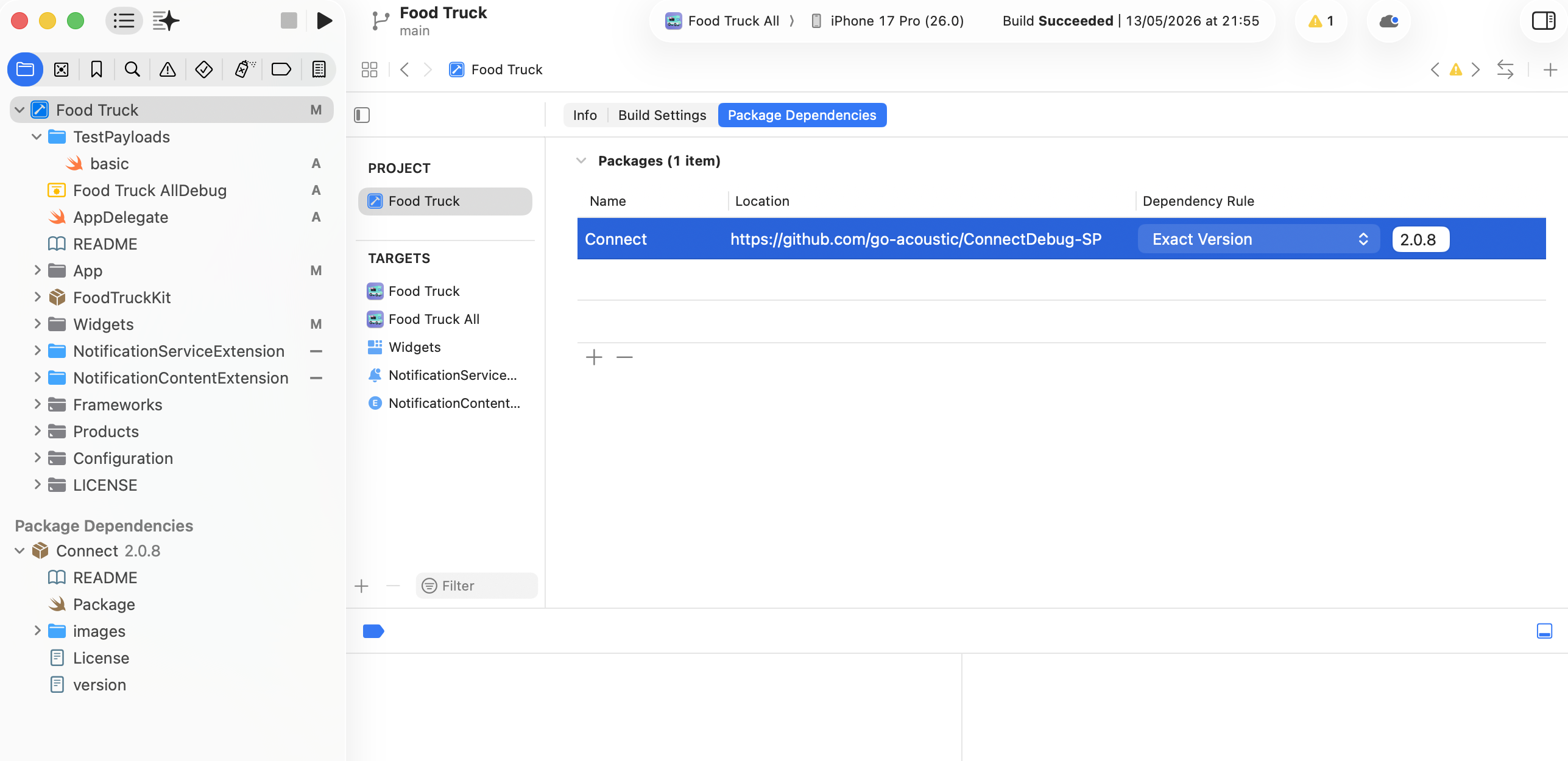
- Go to File > Add Package Dependencies and enter
https://github.com/go-acoustic/Connect-SP. - Set the dependency rule, select your main app target, and click Add Package.
- Clean the build folder (Shift-Cmd-K) and rebuild.
Update your Podfile:
target 'YourApp' do
  use_frameworks!
  pod 'AcousticConnect'
end
Then run pod install and rebuild.
Update your Cartfile to use the release JSON files (remove Debug from each filename):
binary "https://raw.githubusercontent.com/go-acoustic/EOCore/master/EOCore.json"
binary "https://raw.githubusercontent.com/go-acoustic/Tealeaf/master/Tealeaf.json"
binary "https://raw.githubusercontent.com/go-acoustic/Connect/master/Connect.json"
Then run carthage update --use-xcframeworks and rebuild.
Update your app key (if applicable)
The collector URL stays the same across environments. The app key may change:
- If your app uses push notifications, you must use a production app key. The development and production app keys are tied to different APNs environments, so swapping the key and swapping the APNs environment have to happen together — see Switch the APNs environment and app key together below.
- If your app does not use push notifications, a single app key works across both environments. Separate keys are still useful if you want to keep test data out of your production reporting and session replay.
Switch the APNs environment and app key together
This step applies only to Swift apps with push notifications enabled. Push notifications are not supported in Objective-C apps.
For push-enabled Swift apps, the iOS-side APNs environment and the Connect-side app key must flip from development to production in lockstep. Either change on its own breaks push delivery: a development app key cannot deliver pushes through the production APNs environment, and the production app key cannot deliver pushes through sandbox.
Ask your Connect administrator to issue a production app key tied to the production APNs environment, then make both changes in your build:
- In Xcode, open Signing & Capabilities for your main app target. Switch the signing profile from a Development profile to a Distribution profile. The
aps-environmententitlement updates fromdevelopmenttoproductionautomatically. - Replace the development app key with the production app key your administrator provided, in whichever file holds your SDK initialization.
Verify production push delivery
Before submitting to the App Store, confirm the production push path end to end:
- Archive a Distribution-signed build and distribute it via TestFlight to a real device.
- Launch the app on the device and grant notification permission when prompted.
- Coordinate with your marketing team to send a test push to your device.
- Verify the notification appears, images load, and push signals appear in the contact's activity feed in Connect.
If the push doesn't arrive, the most common causes are a development app key still in the build, a signing profile that didn't switch from Development to Distribution, or the Connect-side integration still set to the Sandbox environment.
Mask PII in session replay
Before releasing your iOS app to production, mask the personally identifiable information (PII) that session replay would otherwise capture from your screens. See Mask PII in session replay (iOS).
Configure the kill switch URL
The kill switch is a mechanism that lets you remotely disable the Connect library on end users' devices. Configuring the kill switch URL is strongly recommended before going to production.
Build your kill switch URL
- Take your collector URL and replace
collectorPostwithswitch. - Append
/{your_application_key}.
For example, if your collector URL is https://lib-us-1.brilliantcollector.com/collector/collectorPost and your application key is 855e660c38824b4680602c6ac2a00zzz, your kill switch URL is https://lib-us-1.brilliantcollector.com/collector/switch/855e660c38824b4680602c6ac2a00zzz.
Set the kill switch URL in ConnectConfig
ConnectConfigSet the URL through the advanced argument of ConnectConfig using the typed AdvancedKey.killSwitchURL. This approach works for all package managers — Swift Package, Carthage, and CocoaPods.
ConnectSDK.shared.enable(
    with: ConnectConfig(
        appKey: "YOUR_APP_KEY",
        postURL: "YOUR_COLLECTOR_URL",
        advanced: [
            .killSwitchURL: "https://lib-us-1.brilliantcollector.com/collector/switch/YOUR_APP_KEY"
        ]
    )
)[[ConnectApplicationHelper sharedInstance]
enableFramework:@"YOUR_APP_KEY"
withPostMessageUrl:@"YOUR_COLLECTOR_URL"];
[ConnectSDK.shared setConfigurableItem:@"KillSwitchUrl"
value:@"https://lib-us-1.brilliantcollector.com/collector/switch/YOUR_APP_KEY"];Declare the SDK in your privacy manifest
Before submitting to the App Store, make sure your PrivacyInfo.xcprivacy includes the entries from the Connect iOS SDK privacy manifest reference.
Updated 5 months ago