
Integrate the Connect SDK into an Expo app
The Connect SDK captures visitors' interactions with mobile applications. You can integrate it into your Expo app and track the findings in the Acoustic Connect interface.
Language: TypeScript and JavaScript
Availability: Pro, Premium and Ultimate
Scope: This guide covers integrating the Connect SDK into an Expo managed workflow app for development and testing. For bare React Native, see Integrate the Connect SDK into a React Native app. For production configuration, see Move to production.
Requirements
-
Acoustic Connect subscription. You must register your app in Connect and get credentials for it (app key and collector URL). For instructions, see Generate Connect credentials for integration.
-
Development environment. Node.js 20 or later. Expo SDK 55 or later. Supported React Native versions: 0.82.0–0.85.x. iOS builds require Xcode 26 or later. A development build is required - Expo Go is not supported because the Connect SDK uses Nitro Modules, which require native code that Expo Go cannot load. Use
expo-dev-clientor EAS Build. -
Peer dependency.
react-native-nitro-modulesat exactly the version pinned in the SDK'speerDependencies(currently0.35.9). A version mismatch may cause the SDK to fail at startup - even a patch release can contain breaking changes to the native registration contract. -
Mobile app compatibility. iOS 15.1–26.2, Android 8–16 (API 26–36). Android
compileSdk35 or later is required.
Known issues
- Session replay accuracy (iOS). Session replay on iOS may show stale screen snapshots and does not track scroll position. Android is not affected.
- Content inside a
WebViewcomponent is not captured in session replay. - iPad is not supported. Due to changes introduced in iPadOS 14, the SDK does not support iPad.
- Dual SIM features are in beta. Behavior using multiple carriers may be unreliable.
Initial setup
- From your project root, install the Connect library, its required peer dependency and the Expo build tooling.
npx expo install expo-dev-client expo-build-properties
npm install react-native-acoustic-connect [email protected]
npx expo install expo-dev-client expo-build-properties
npm install [email protected] [email protected]- Open ConnectConfig.json and update the following values with your credentials. All other values are set to safe defaults and do not require changes for initial integration.
| Key | Value |
|---|---|
AppKey | Your Connect app key |
PostMessageUrl | Your collector URL |
useRelease | Set to false for development (enables debug logging). Set to true before releasing to production. |
- Add
react-native-acoustic-connectandexpo-build-propertiesto yourapp.jsonplugins.
{
  "expo": {
    "plugins": [
      "react-native-acoustic-connect",
      ["expo-build-properties", { "android": { "minSdkVersion": 26 } }]
    ]
  }
}
Why these plugins are needed
react-native-acoustic-connect wires ConnectConfig.json into the Android build at prebuild time so your credentials reach the native assets. Without it, the Android SDK uses placeholder credentials and reports to the wrong collector.
expo-build-properties raises Android minSdkVersion to 26, which is the Connect Android SDK minimum. Expo templates default to a lower value, and the Android build fails without this.
- Run
expo prebuildto generate the native projects.
npx expo prebuild
WarningThe values in ConnectConfig.json are baked into the native bundles at build time, not read at runtime. If you edit the file later, run
expo prebuildagain before rebuilding.
- Validate your configuration (recommended).
doctorchecks the things that otherwise fail late and confusingly at build time - Node version and ConnectConfig.json values (AppKey,PostMessageUrl). It's safe to re-run any time you change ConnectConfig.json.
npx acoustic-connect doctorWarnings you can ignore during initial integration
KillSwitchUrl— not required for development. Set it before releasing to production.iOSDevelopmentTeam— push-specific. Push notifications are outside the scope of this guide.
- Add the
<Connect>wrapper to your app's root component. This is required for screen tracking, touch capture and keyboard event interception.
import { NavigationContainer } from '@react-navigation/native'

export default function App() {
  return (
    <NavigationContainer>
      {/* your screens */}
    </NavigationContainer>
  )
}
import { useNavigationContainerRef, NavigationContainer } from '@react-navigation/native'
import { Connect } from 'react-native-acoustic-connect'
export default function App() {
const navigationRef = useNavigationContainerRef()
return (
<Connect
navigationRef={navigationRef}
captureKeyboardEvents={true}
>
<NavigationContainer ref={navigationRef}>
{/* your screens */}
</NavigationContainer>
</Connect>
)
}- Build and run your app.
npx expo run:iosnpx expo run:androidVerify the SDK is running
The SDK auto-initializes at module load using the values from ConnectConfig.json. With "useRelease": false in your config (the default), verbose native logging from Connect, Tealeaf and EOCore is written to the Xcode console (iOS) and Logcat (Android). Confirm that the SDK is initializing, capturing screen views, and posting to the collector.
Enable debug logging
Add these environment variables with a value of 1 to your scheme so the Xcode console shows verbose native logging: CONNECT_DEBUG, TLF_DEBUG and EODebug. Without this step, no verbose native logging appears even with useRelease: false set.
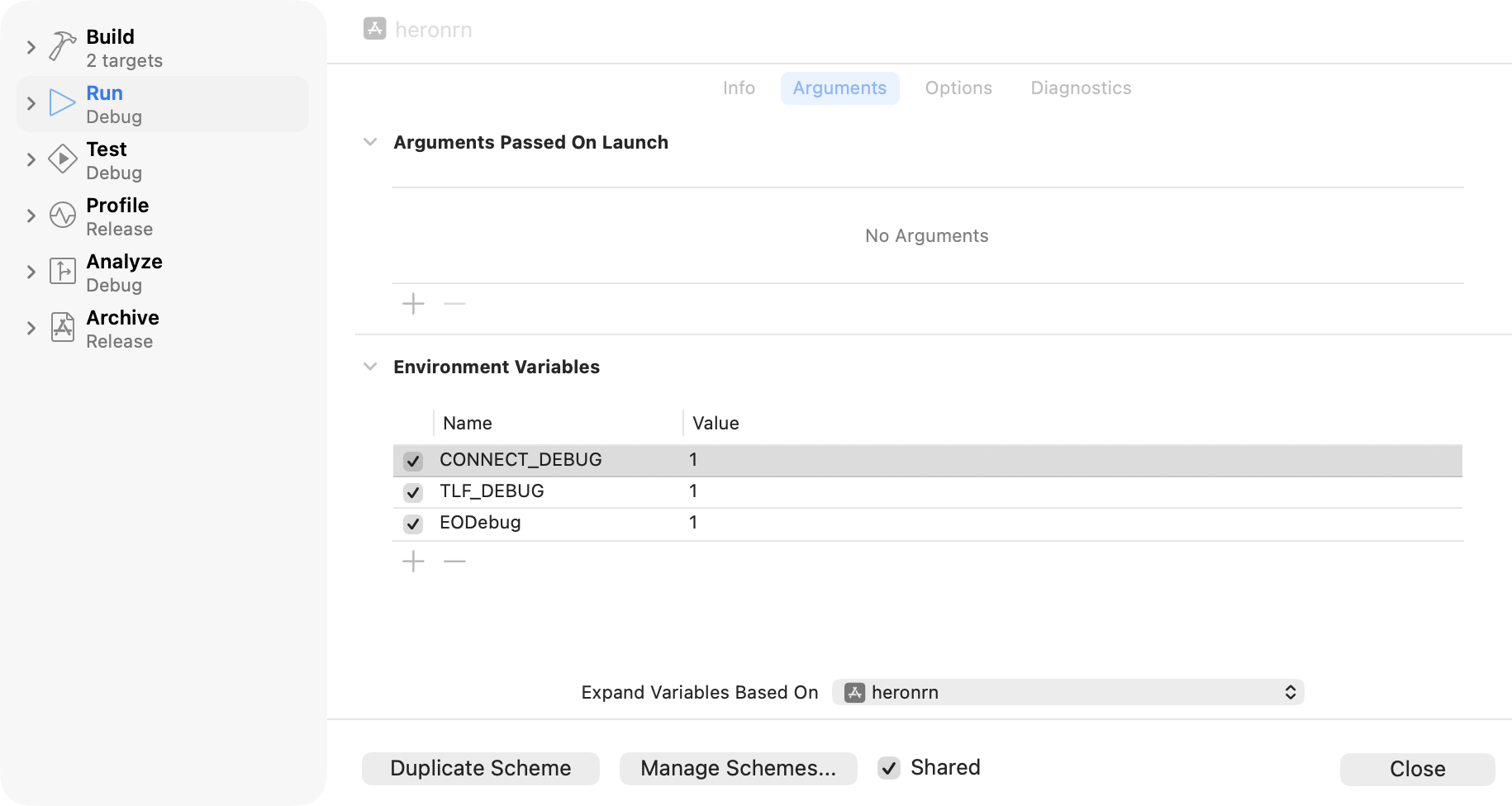
Verbose logging is on by default - no equivalent setup step needed. Filter Logcat by the tags Tealeaf, EOCore and Connect to isolate SDK output.
If you have a Connect Ultimate subscription, you can also verify the integration visually: open Behavior studio > Sessions > Session replay and confirm that your session appears and renders correctly.
Troubleshooting
npm install peer-dependency conflict on react-native-nitro-modules
npm install peer-dependency conflict on react-native-nitro-modulesThe SDK pins react-native-nitro-modules to an exact version. If npm install reports a peer conflict, your project is resolving a different version. Check the resolved version with npm ls react-native-nitro-modules and align it to the version declared in the SDK's peerDependencies. See Requirements above.
Using --legacy-peer-deps or --force silences the error but does not resolve the underlying mismatch; a version conflict can cause the SDK to fail at startup.
ConnectConfig.json not created after npm install
npm installThe file is created by a postinstall script that only runs when npm actually installs packages. If the SDK was already listed in package.json before you ran npm install, npm may skip the script with an "up to date" message. To create the file manually, run:
node node_modules/react-native-acoustic-connect/scripts/postinstall.mjsConnect: navigation tracking disabled - no usable NavigationContainer ref resolved
Connect: navigation tracking disabled - no usable NavigationContainer ref resolvedThis warning may appear at startup when NavigationContainer is nested inside other providers rather than being a direct child of <Connect>. Screen tracking works correctly despite the warning - it does not indicate a loss of functionality.
Gradle fails to resolve io.github.go-acoustic:connect
io.github.go-acoustic:connectThe SDK requires an Android Connect artifact in the range [11.0.11, 12.0.0). If Gradle rejects your pinned version, set "AndroidVersion" in ConnectConfig.json to an empty string and re-sync.
Gradle cannot find node or npx
node or npxThis occurs when Gradle is launched outside a shell where your Node installation is active - most commonly when Android Studio is opened from the Dock rather than from a terminal.
Recommended fix: Open Android Studio from a terminal so it inherits your shell's PATH:
open -a "Android Studio"SDK initializes but no session appears in Connect
The kill switch may be returning "die". Check the native log for KillSwitch Responded with 0 and killswitch : says die. The most likely cause is that PostMessageUrl points to a different collector node than the one where your app is registered. Verify the collector URL in your Connect account and update PostMessageUrl in ConnectConfig.json, then run expo prebuild again and rebuild.
Config changes don't take effect after editing ConnectConfig.json
ConnectConfig.json is baked into the native build at prebuild time. A Metro reload is not enough - run npx expo prebuild --clean and rebuild.
Next steps
- Identify users at registration - send the account registered signal to associate sessions with contacts in Connect.
- Identify users at sign-in - send the logged in signal to attribute sessions to known contacts.
- Enable push notifications - configure APNs (iOS) and FCM (Android) using the bundled Config Plugin.
- Connect React Native SDK public API reference - full method signatures and event types.
Updated 3 months ago