
Test your push notification setup
There are several ways to make sure your push configuration is working exactly as needed. You need a Connect user account. If you don't have one, ask your Connect administrator to set one up for you.
Language: Applies to all Connect SDKs (iOS, Android, bare React Native, Expo) — this guide covers testing in the Connect interface, not SDK-specific code.
Availability: All Connect subscription tiers.
Scope: This guide covers verifying that push notifications are configured correctly and reach a test device.
Option 1: Directly from Message composer (requires an identified test user)
This is the easiest way to send a test message. But your app must send at least one identification signal — logged in or account registered — to use it.
- Build and run on a physical device.
- Grant notification permission if you haven't done it yet.
- Log in or register an account.
- In Connect, go to Content studio > Messages and create a message for the Push notification channel.
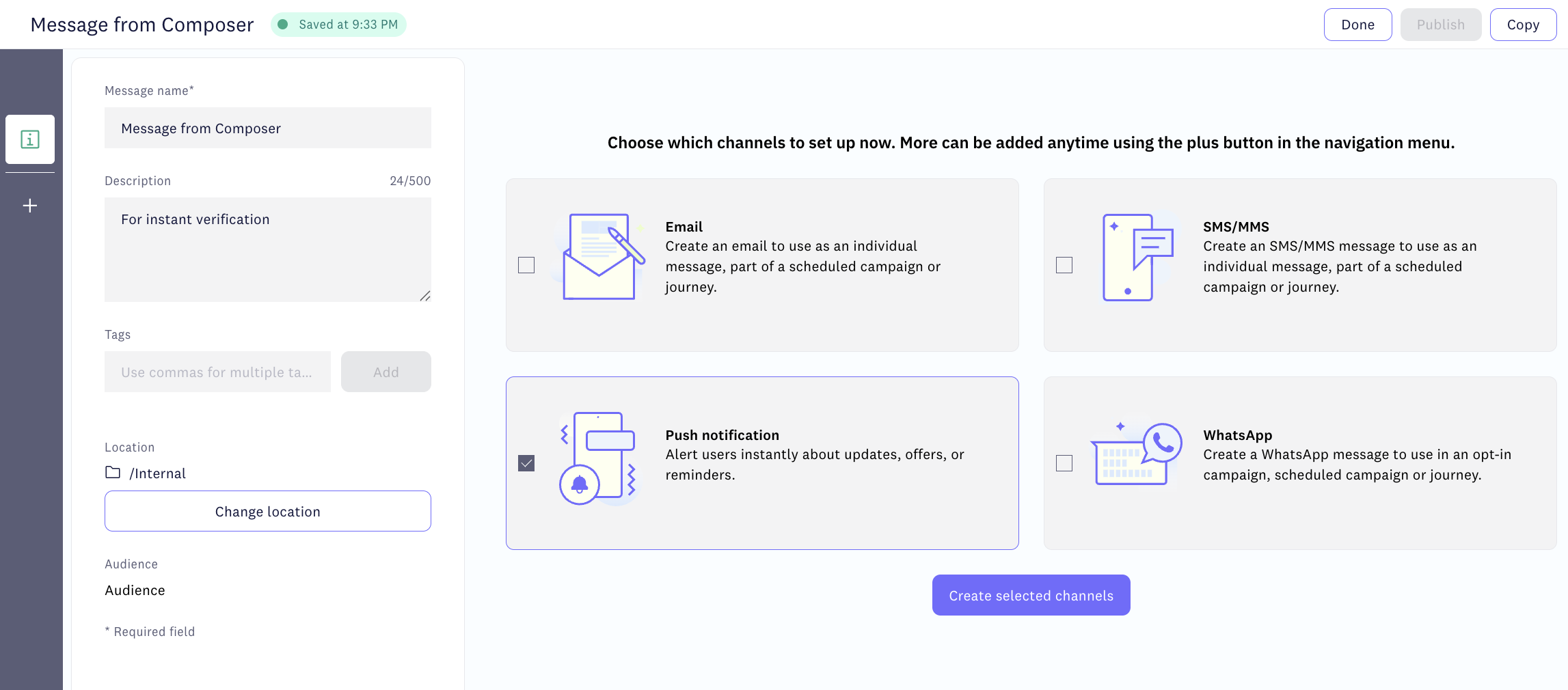
New push notification in Message composer
- Click Preview and test send.
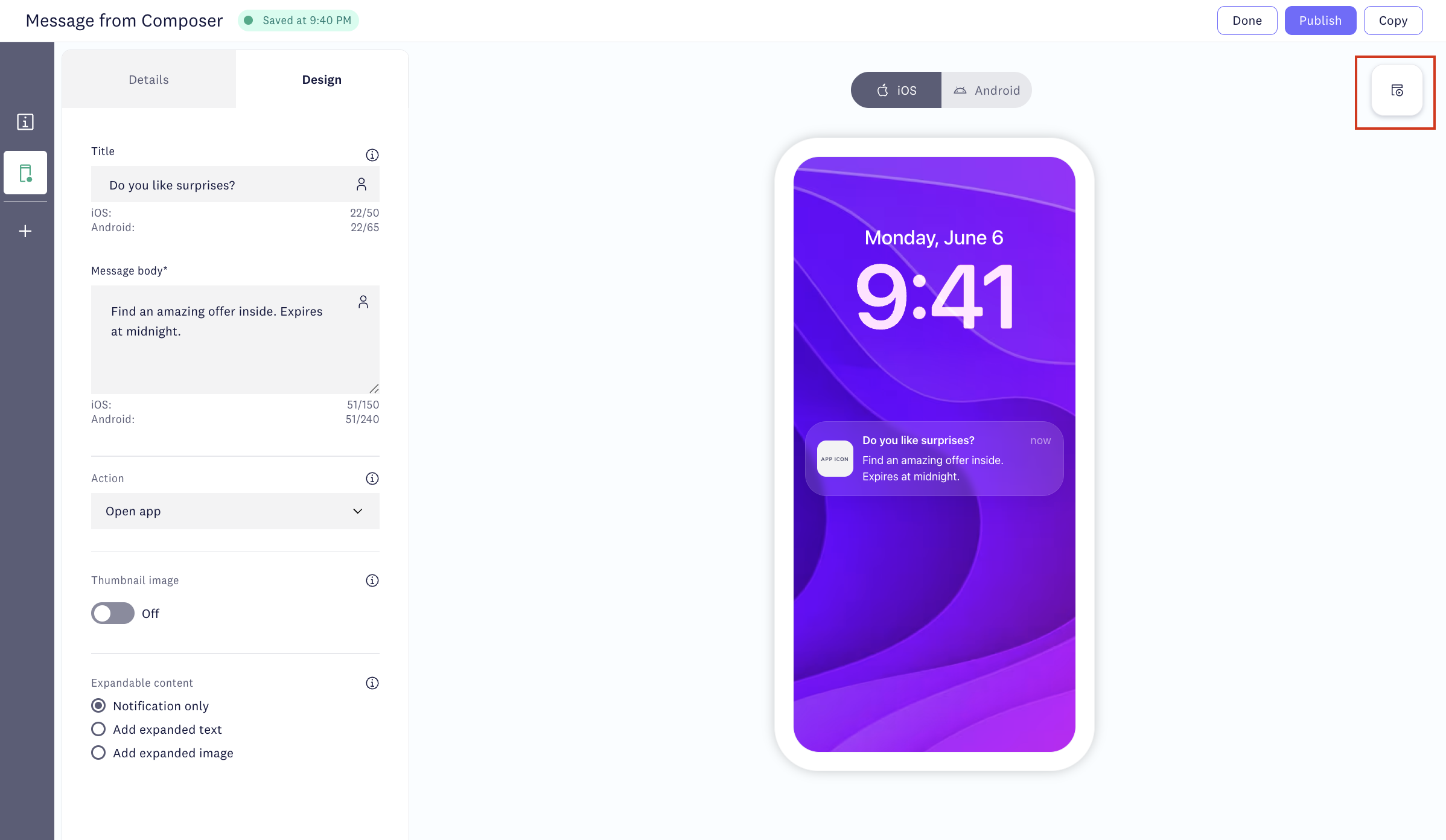
"Preview and test send" option in Connect
- Select your app and the email address you are logged in under.
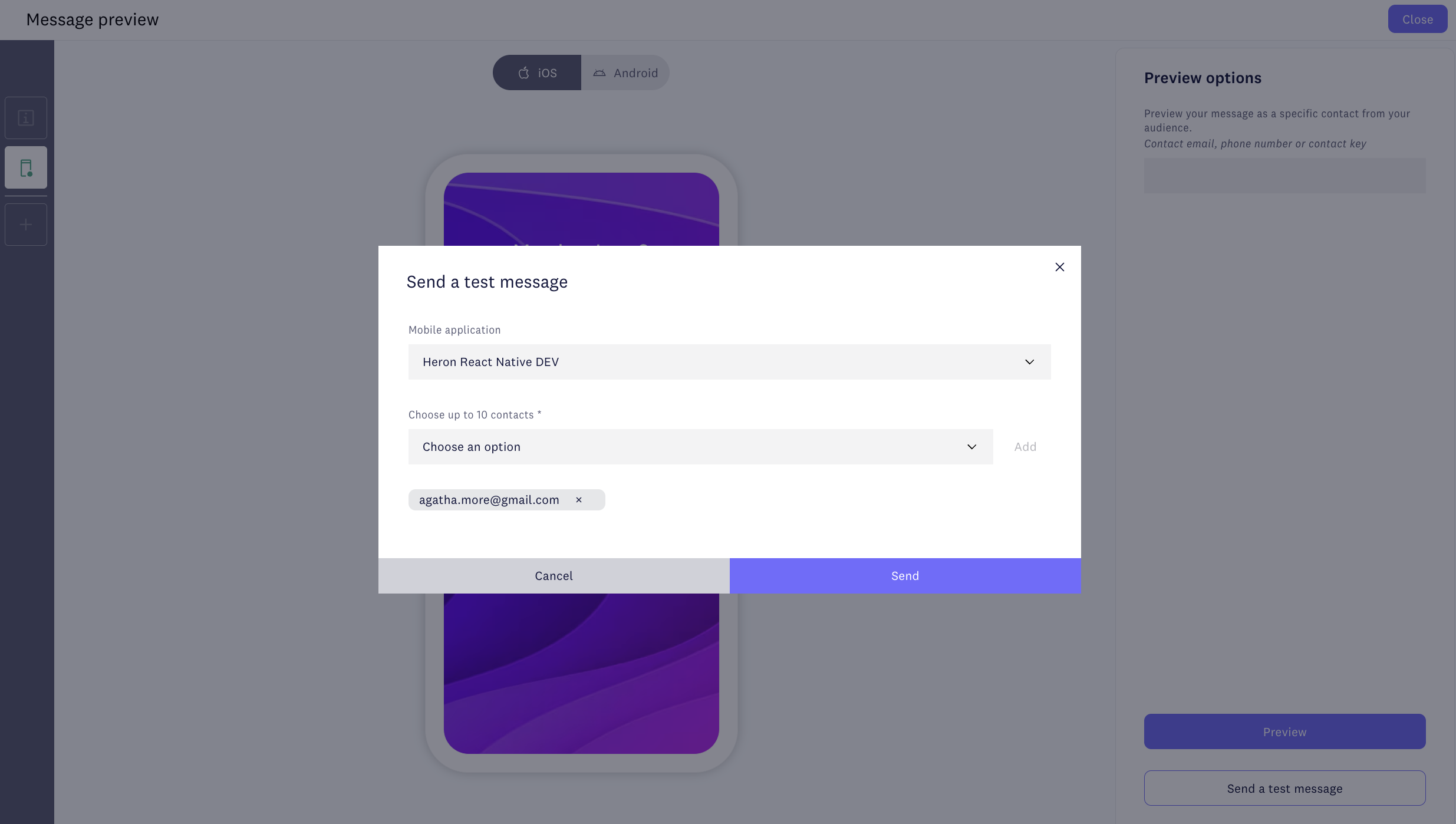
The message arrives shortly. The app can be open or closed.
Option 2: Through a campaign
There are several ways to trigger a push. Here is one that works both for identified and unidentified users.
- Go to Content studio > Messages, create a message for the Push notification channel and publish it.
- In Campaigns, create a campaign. Choose any consent group for the list.
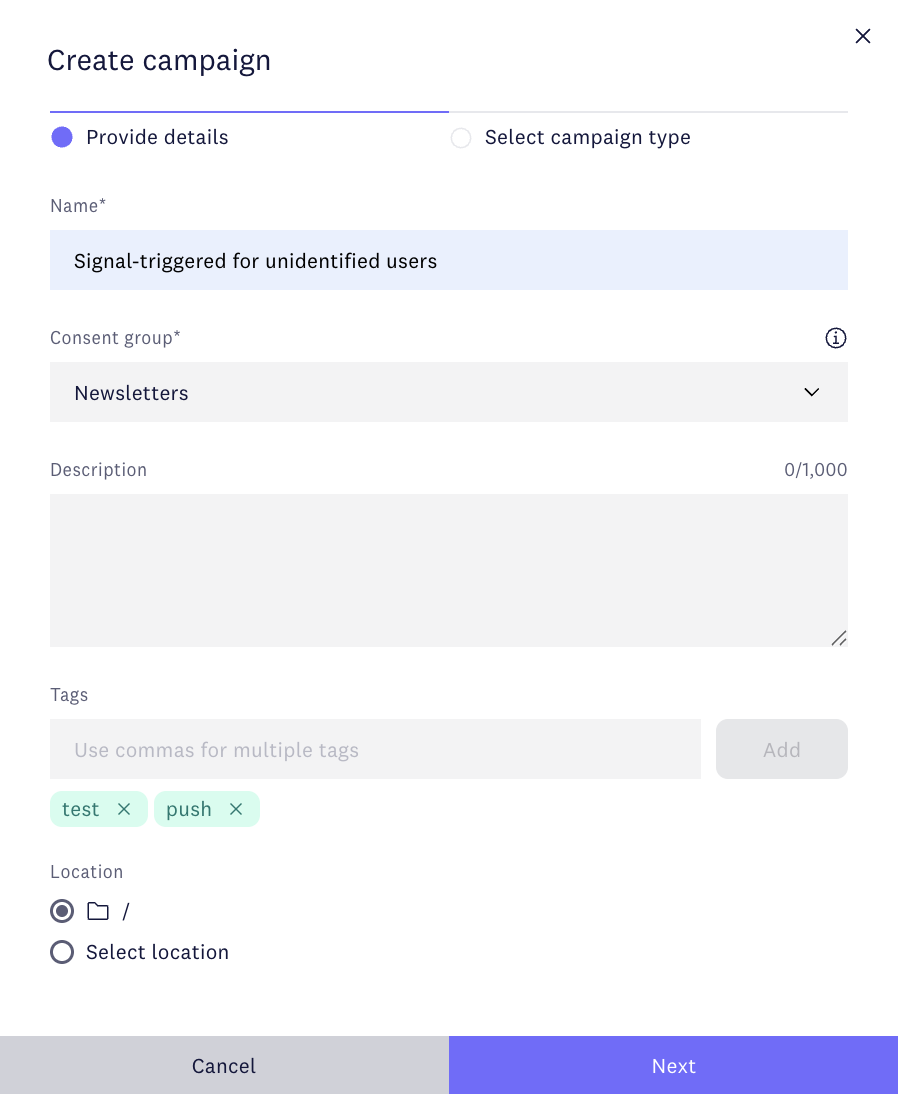
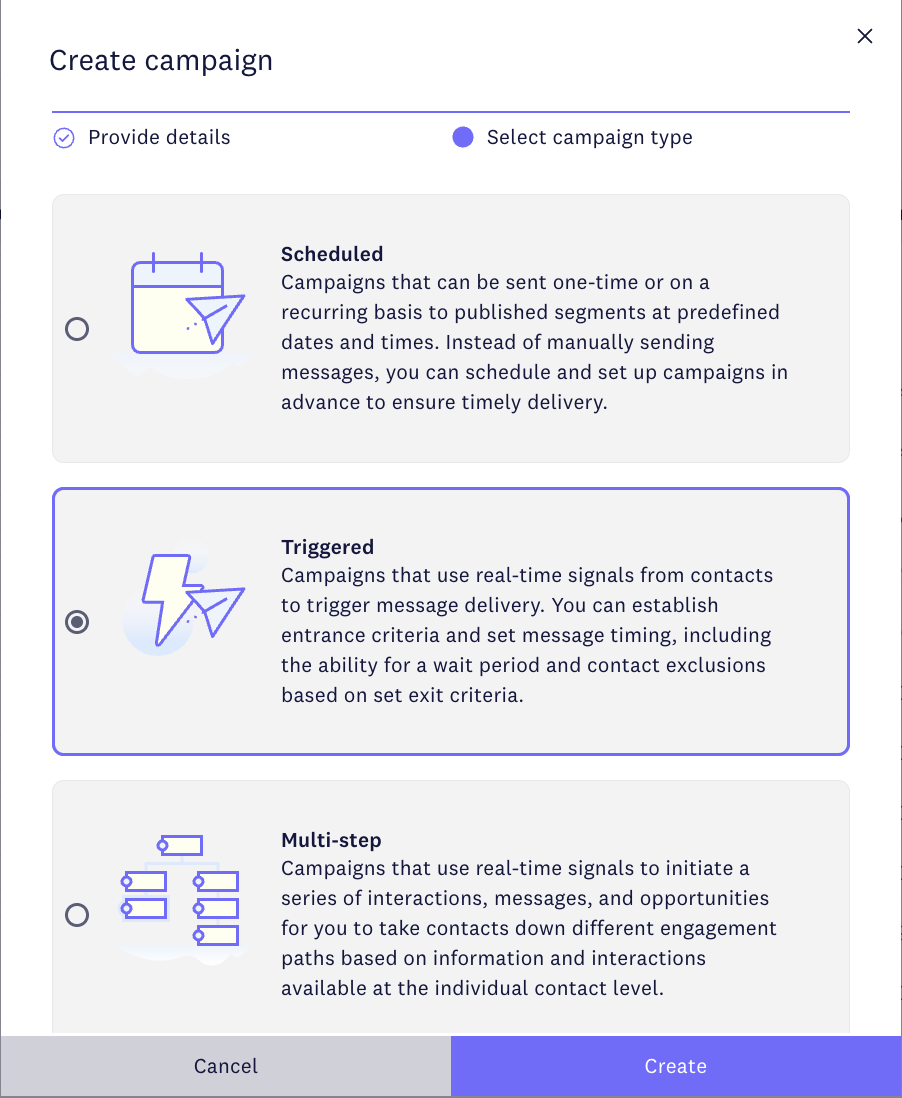
- Set campaign type to Triggered.
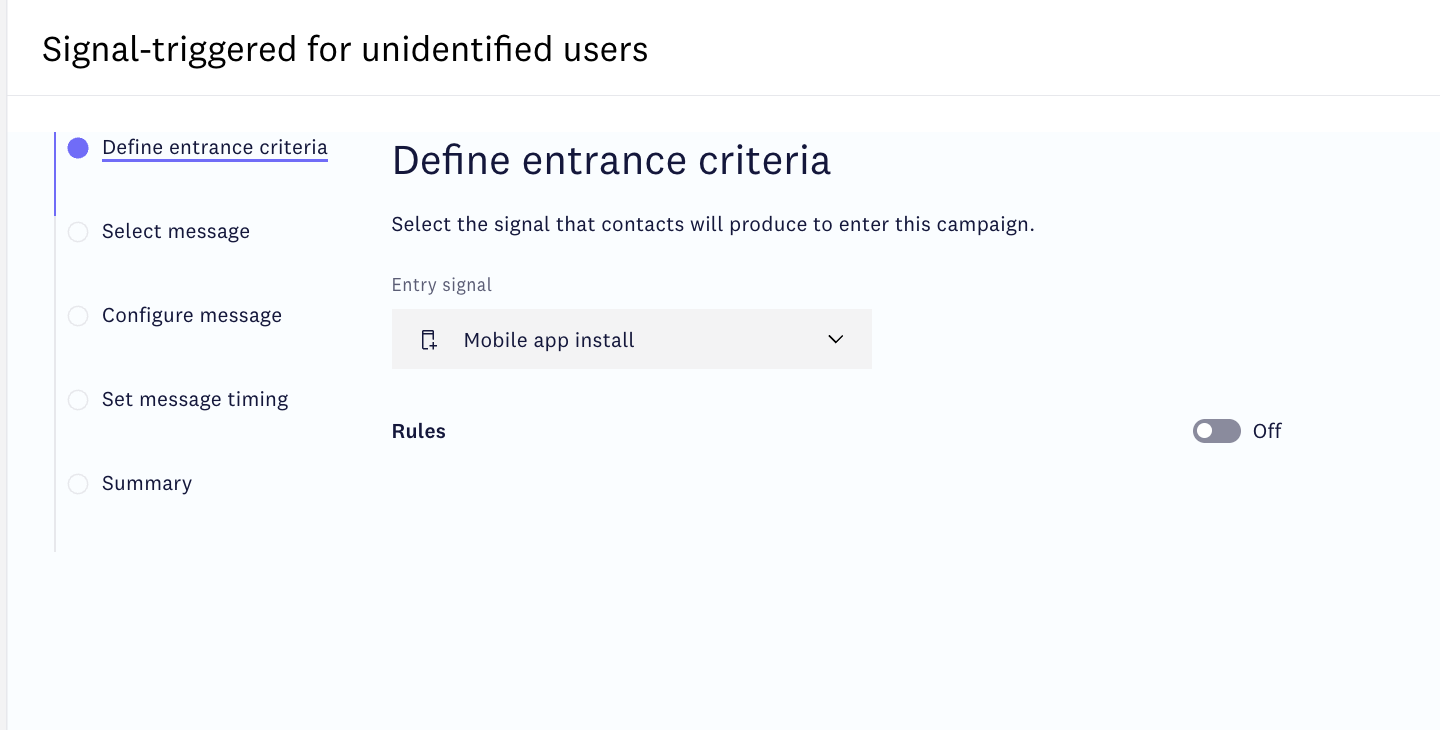
- Set the entry signal to Mobile app install (it is enabled by default in the Connect SDK).
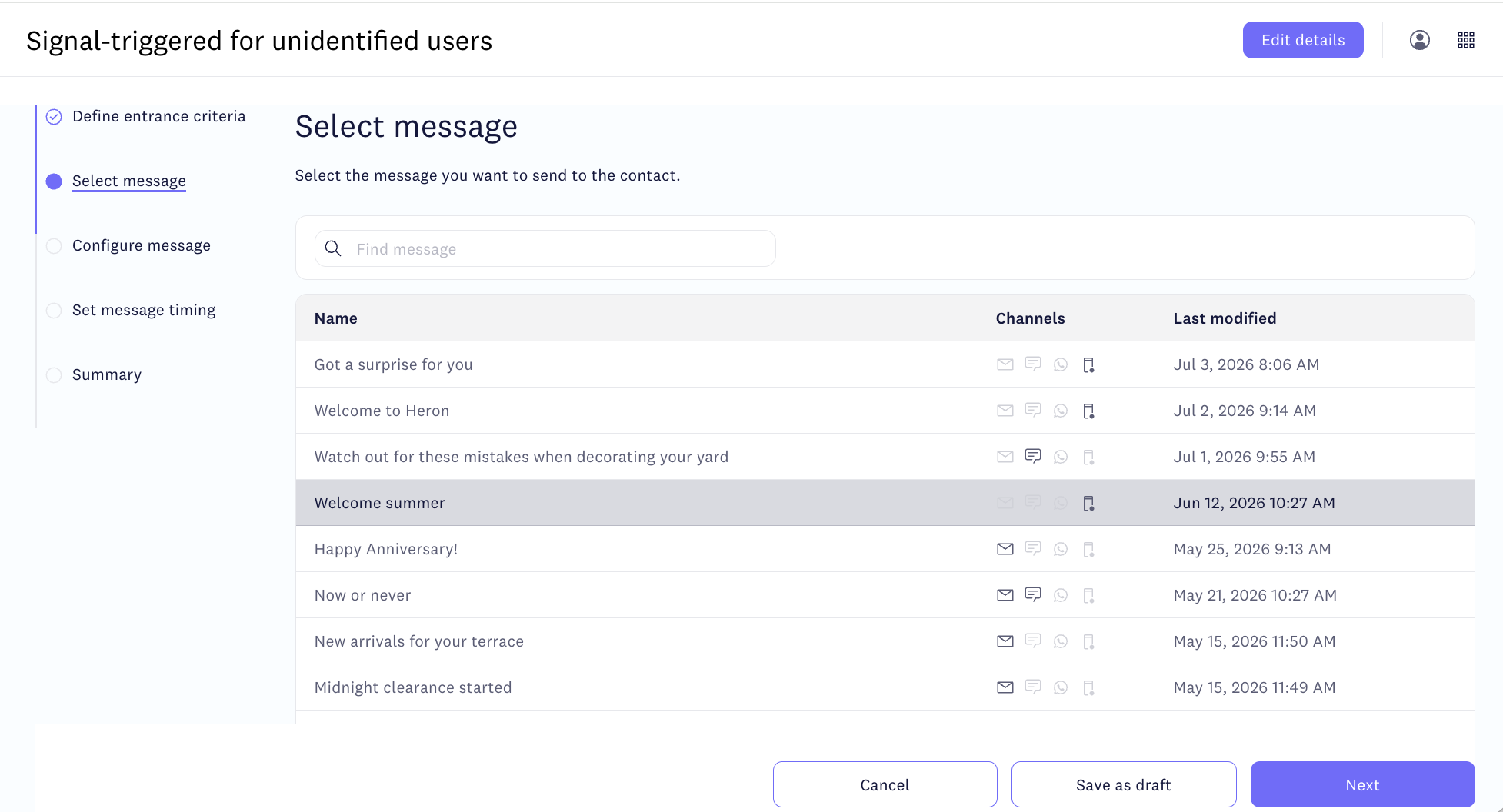
- Select your test message from step 1.
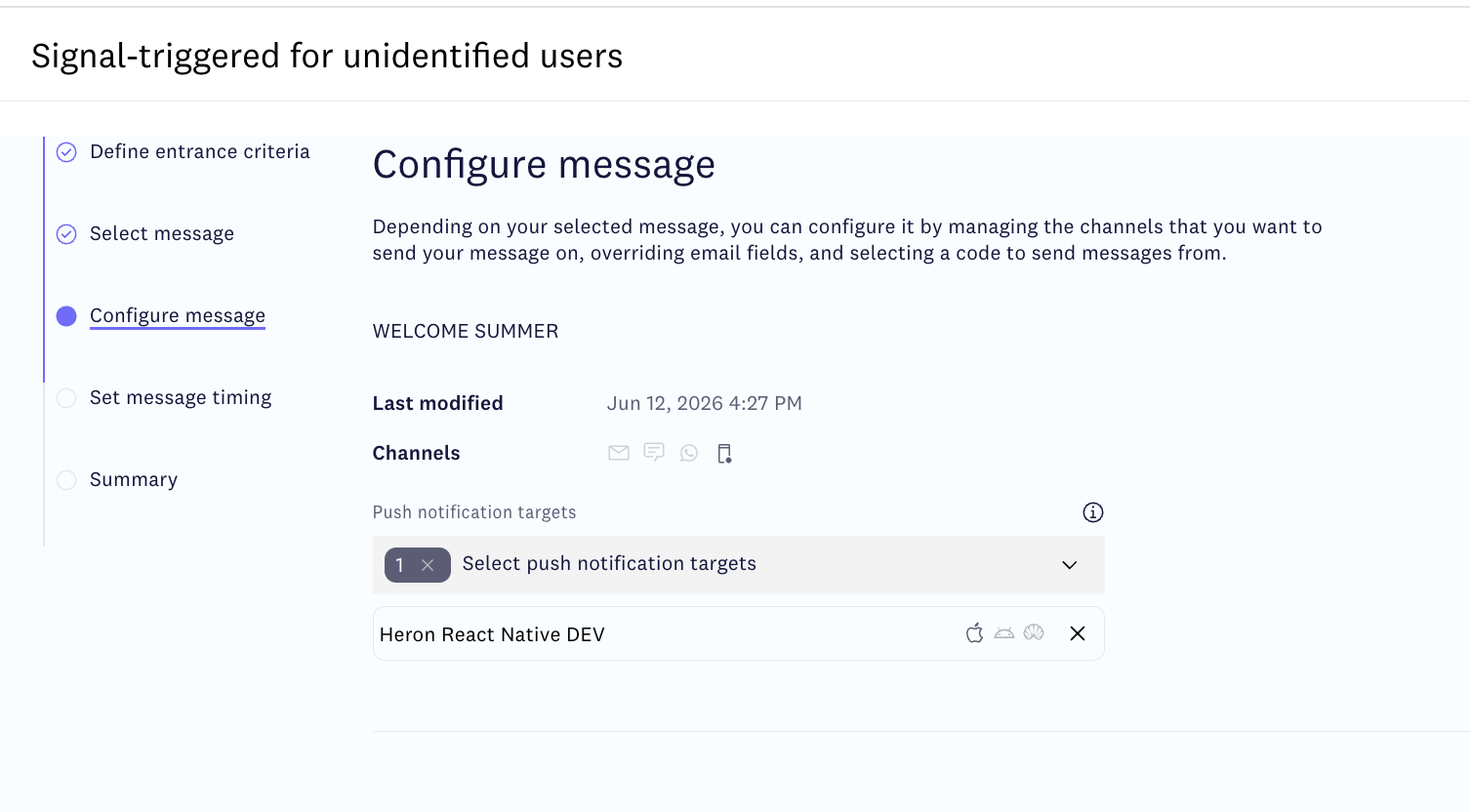
- In Push notification targets, select your app.
- Set the delay between the signal firing and the notification being sent. For testing, choose the shortest available interval so you don't have to wait.
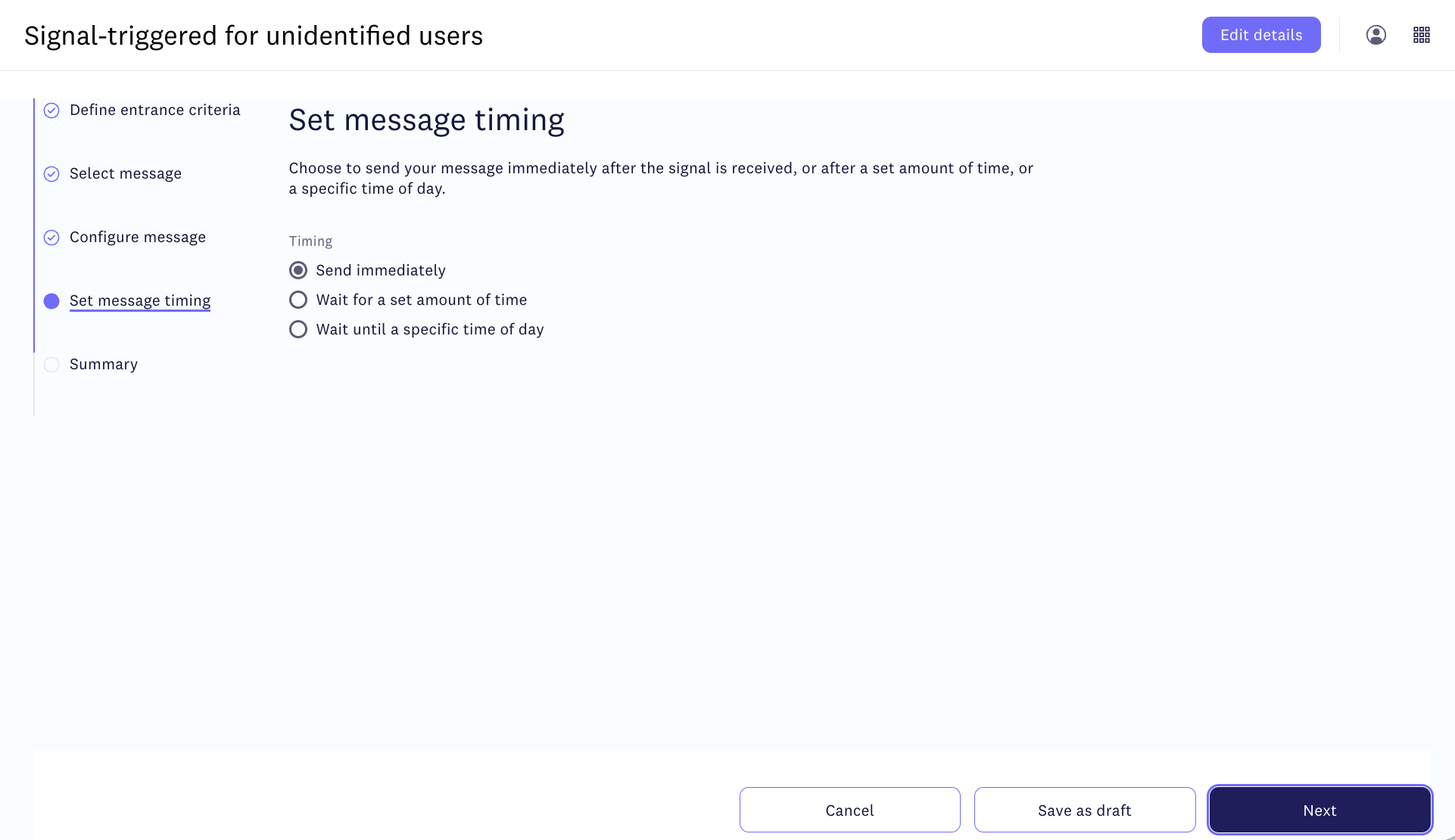
- Review the settings and start the campaign.
- Remove the app from your device if it is installed. Build and run it again.
- Grant notification permission and wait for the push notification to arrive. You can minimize the app, but don't force quit it until the message arrives.
Additional verification
Receiving the notification on your device is the primary confirmation that the test worked. For additional confirmation, go to Audience > Contacts. A new anonymous contact appears, named "Contact from app <app_key>", with the following signals in its activity feed: mobile application installed, consent status updated, and push notification delivered.
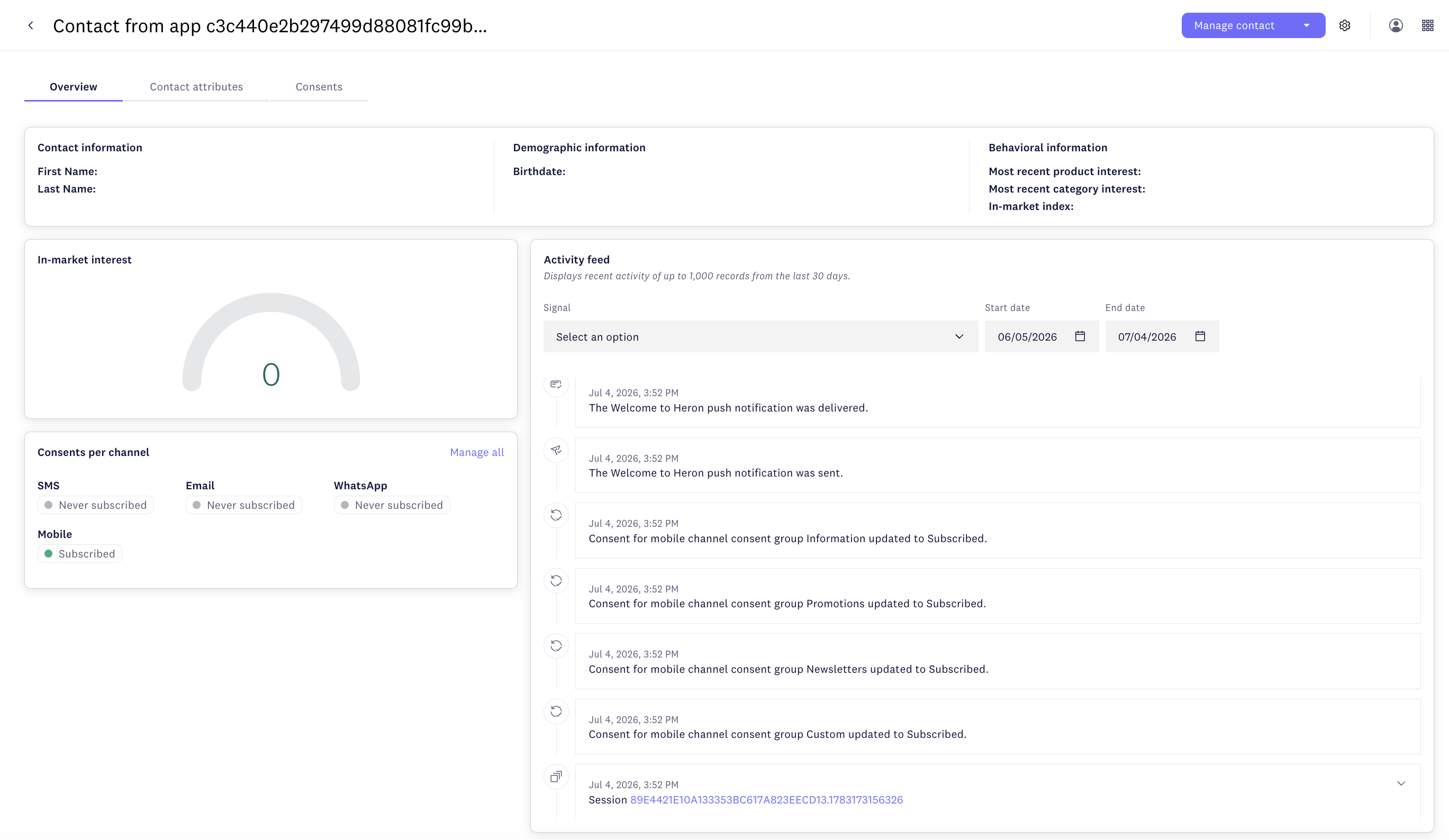
Unidentified contact in Connect audience
If you have a Premium or Ultimate subscription for Connect, you can click the session number in the contact's activity feed or navigate to Behavior studio > Session intelligence and view full signal content there.
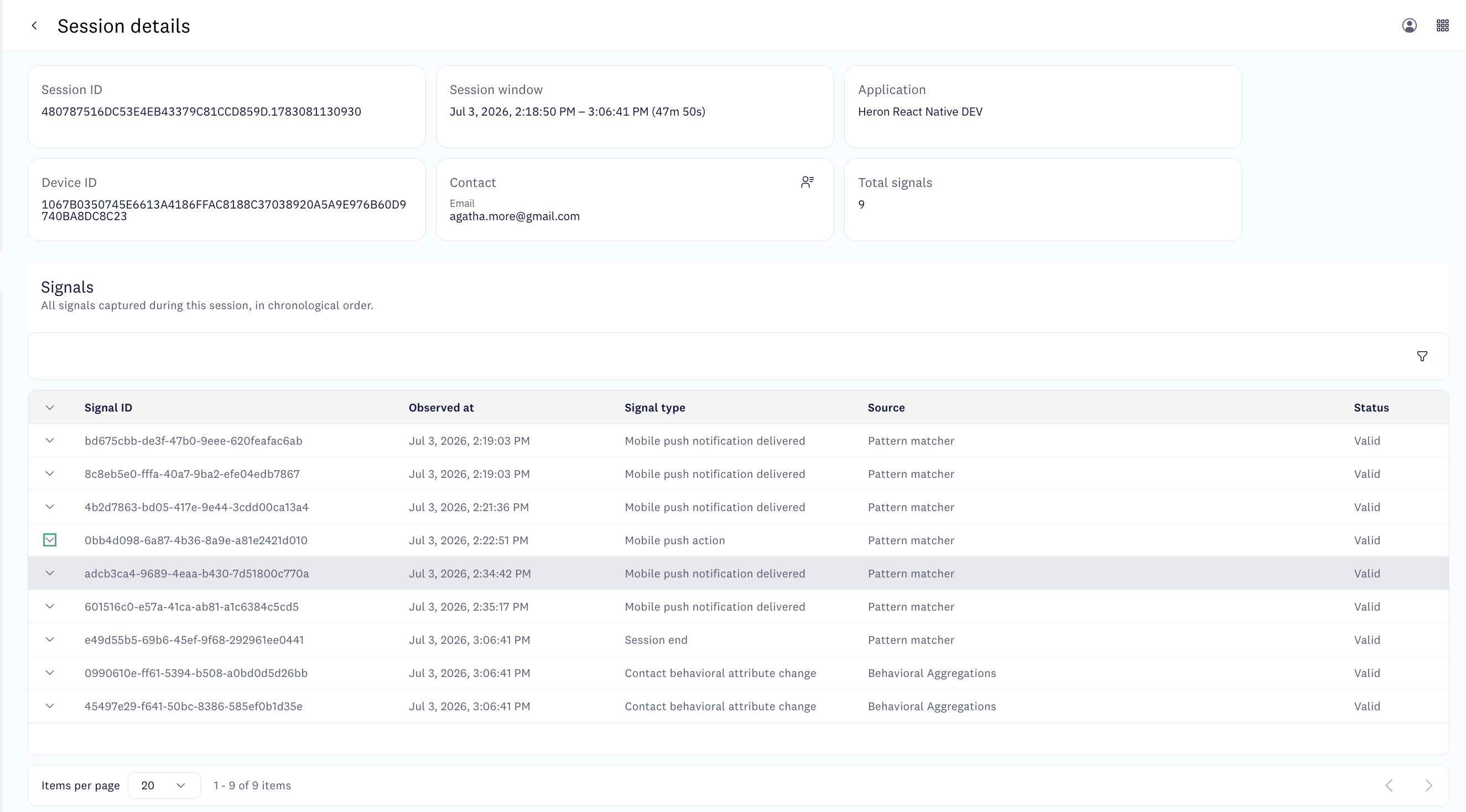
Session intelligence in Connect
Related
- Enable push notifications in a React Native app — hybrid (React Native)
- Enable push notifications in a native iOS app — native (Swift)
- Enable push notifications in an Android app (Firebase) — native (Android, FCM)
- Enable push notifications in an Android app (HMS) — native (Android, Huawei)
Updated 4 months ago